AIMeet KadaAI Intelligence

Fast at the counter. Clear for the owner.

A keyboard-first till that keeps billing when the internet drops, and a web admin where you run the shop from anywhere. Here is everything it does today.

  • 30-day free trial
  • No card needed
  • Works offline

The till

Built for the rush at the counter

Scan, take payment and print without reaching for the mouse. Every sale is saved on the till first, so billing never waits for the internet.

66ms

A whole 3-item sale, in software time1

21ms

One barcode scan1

15s

Background sync to your web admin, while you keep billing

Find any item

Scan it, or type a few letters

One box takes both the barcode scanner and the keyboard. An exact barcode or SKU code goes straight into the bill. Anything else shows matches as you type, with every size and colour, its price and its stock.

  • Works with USB or Bluetooth scanners that type like a keyboard
  • Search by name, SKU code or barcode
  • The bill so far stays in view while you search
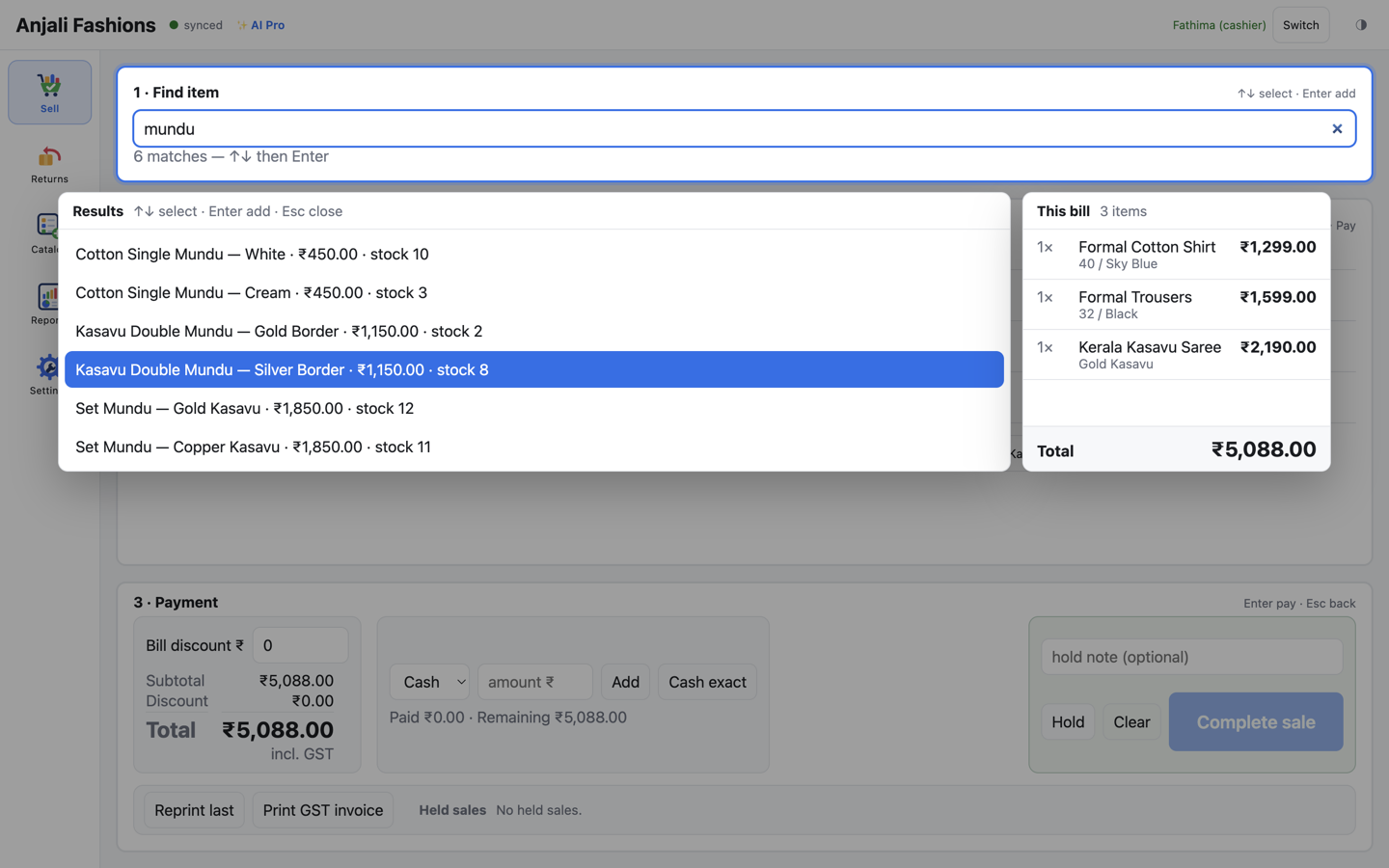
The till’s sell screen with “mundu” typed in the search box: six matching items, each with its variant, price and stock, beside a panel showing the bill so far and its total.
Type “mundu” and every match appears with its price and stock. The bill stays in view.

Discounts and payments

Part UPI, part cash. The change is worked out.

Give a rupee discount on any line, or on the whole bill. Then take payment in Cash, Card, UPI or Other, in any mix, and the till shows the change.

  • A bill discount is shared across the lines before GST, so the tax stays right
  • “Cash exact” settles the whole bill in one press
  • Complete sale stays locked until the bill is paid
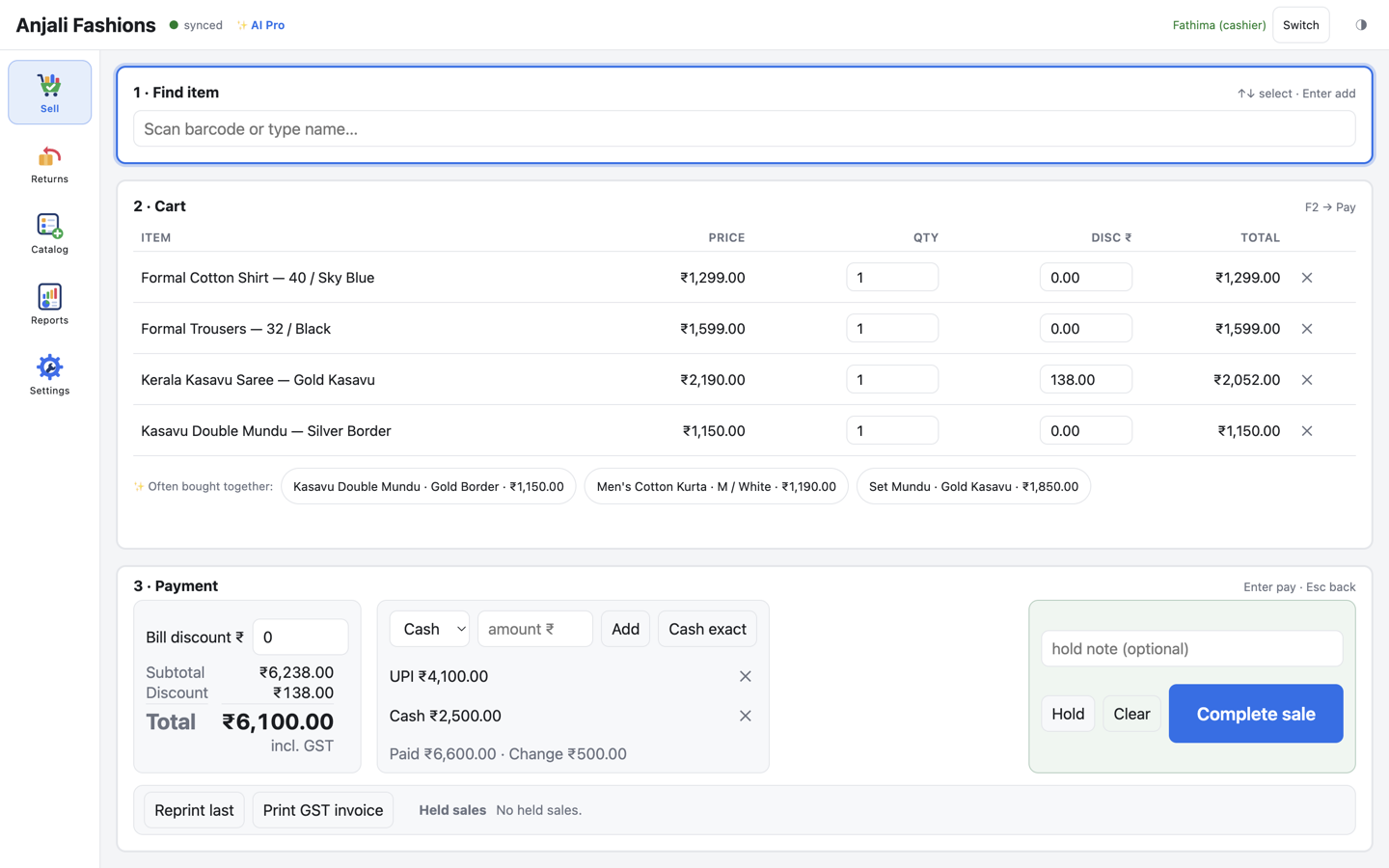
The till’s sell screen with four clothing items in the cart, a ₹138 discount on the saree, and a ₹6,100 total paid with ₹4,100 by UPI and ₹2,500 in cash, showing ₹500 change.
One bill, two ways to pay: ₹4,100 by UPI and ₹2,500 in cash, with ₹500 change.

Keyboard-first

Hands stay on the keyboard

Every step has a key, and each panel shows its hint. Scan, pay and print without touching the mouse.

  • F1Jump to search
  • F2Go to payment
  • EnterAdd the item, add the payment, complete the sale
  • EscBack to search
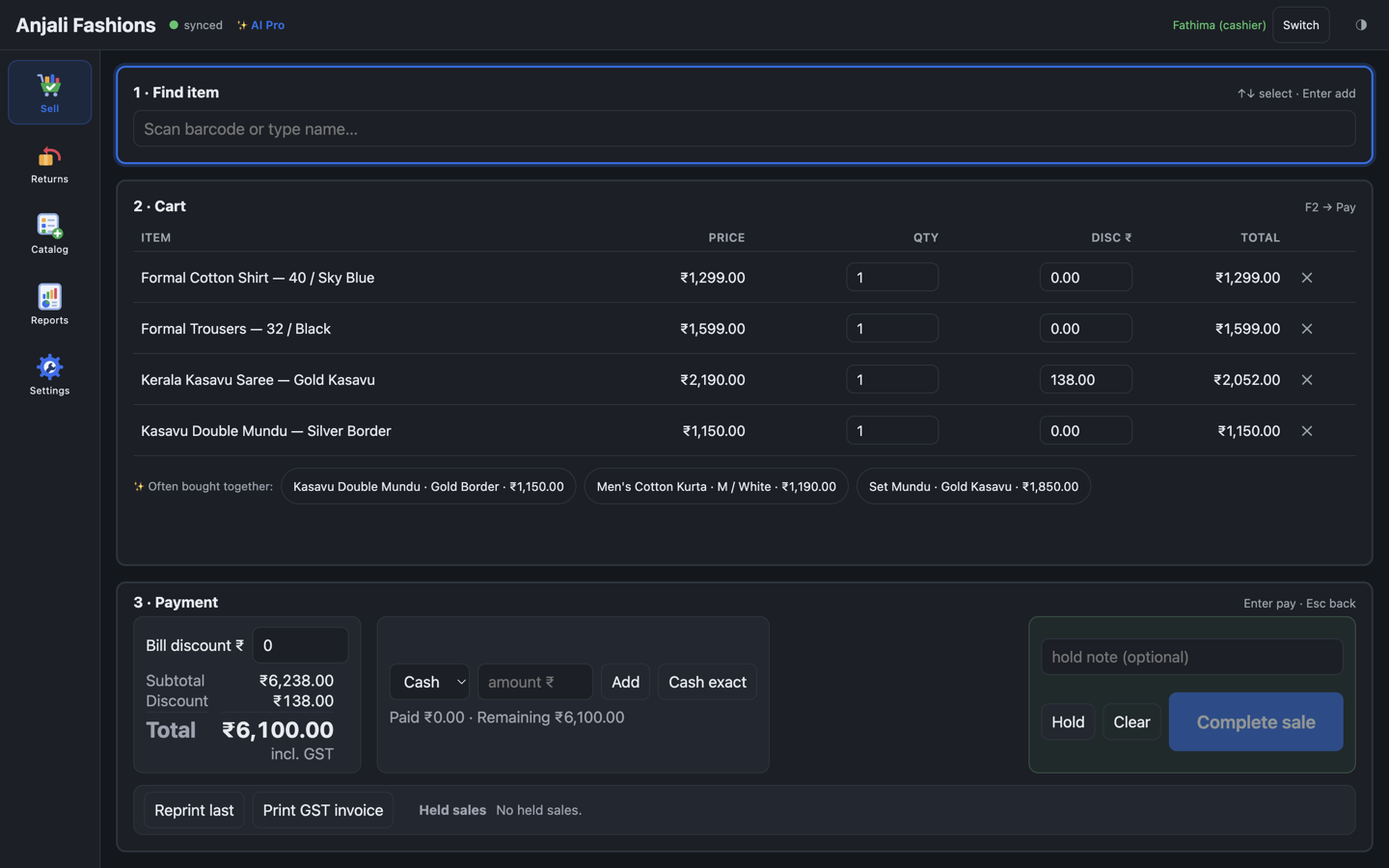
The till’s sell screen in its stacked layout: a search box on top, a cart of four items with quantity and discount columns, ‘often bought together’ suggestions, and the payment panel with bill discount, Hold and Complete sale.
Key hints sit in the corner of each panel: Enter to add, F2 to pay, Esc to go back.

Returns

Take back one item, or the whole bill

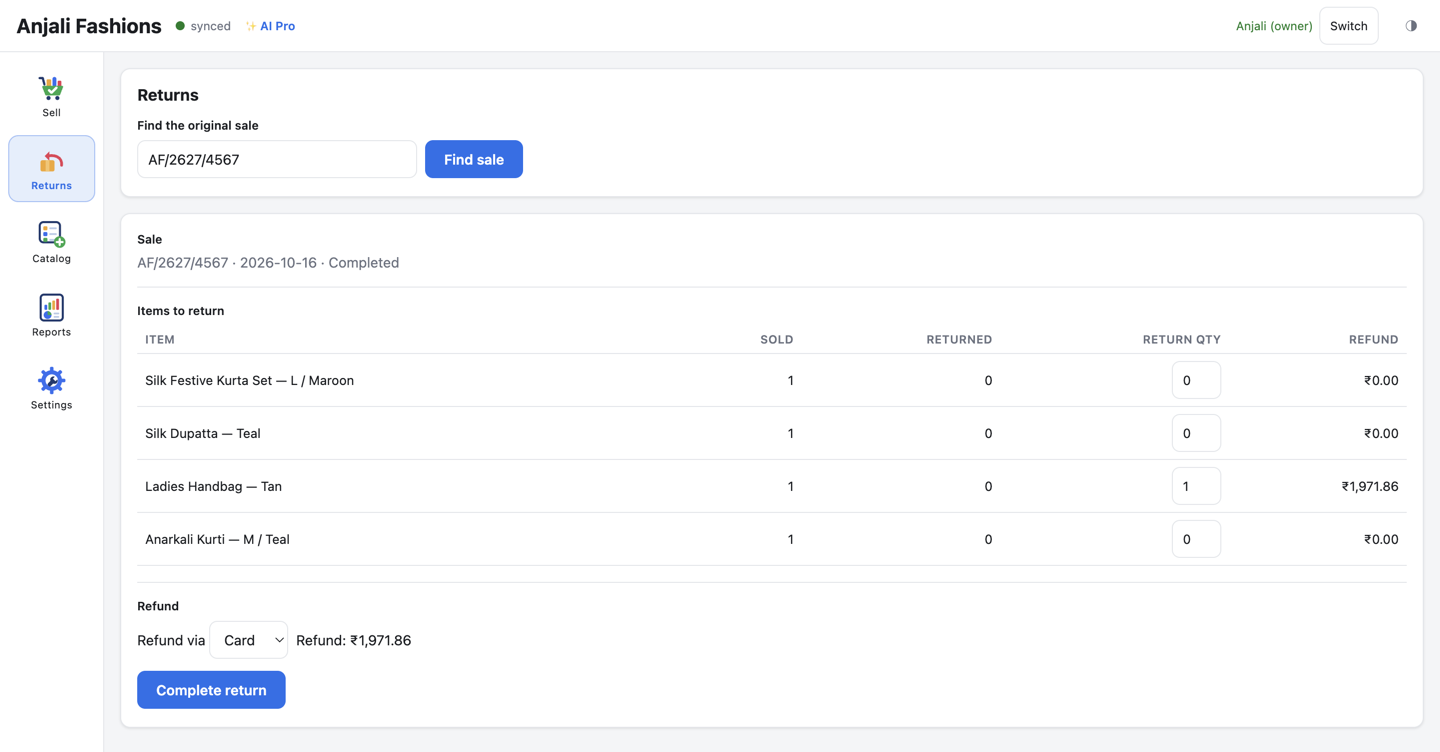
Look up the original bill, choose what is coming back and refund by cash, card or UPI. The till prints a credit note, puts the stock back and remembers what has already been returned.

  • Each piece refunds exactly its share of the discount and GST
  • Return part of a bill today, and the rest another day
The till’s Returns screen: bill AF/2627/4567 looked up, four items listed with sold and returned quantities, one handbag marked for return, and a ₹1,971.86 refund by card.
Find the bill, pick what is coming back, choose how to refund.

Reports at the counter

Close the day at the till

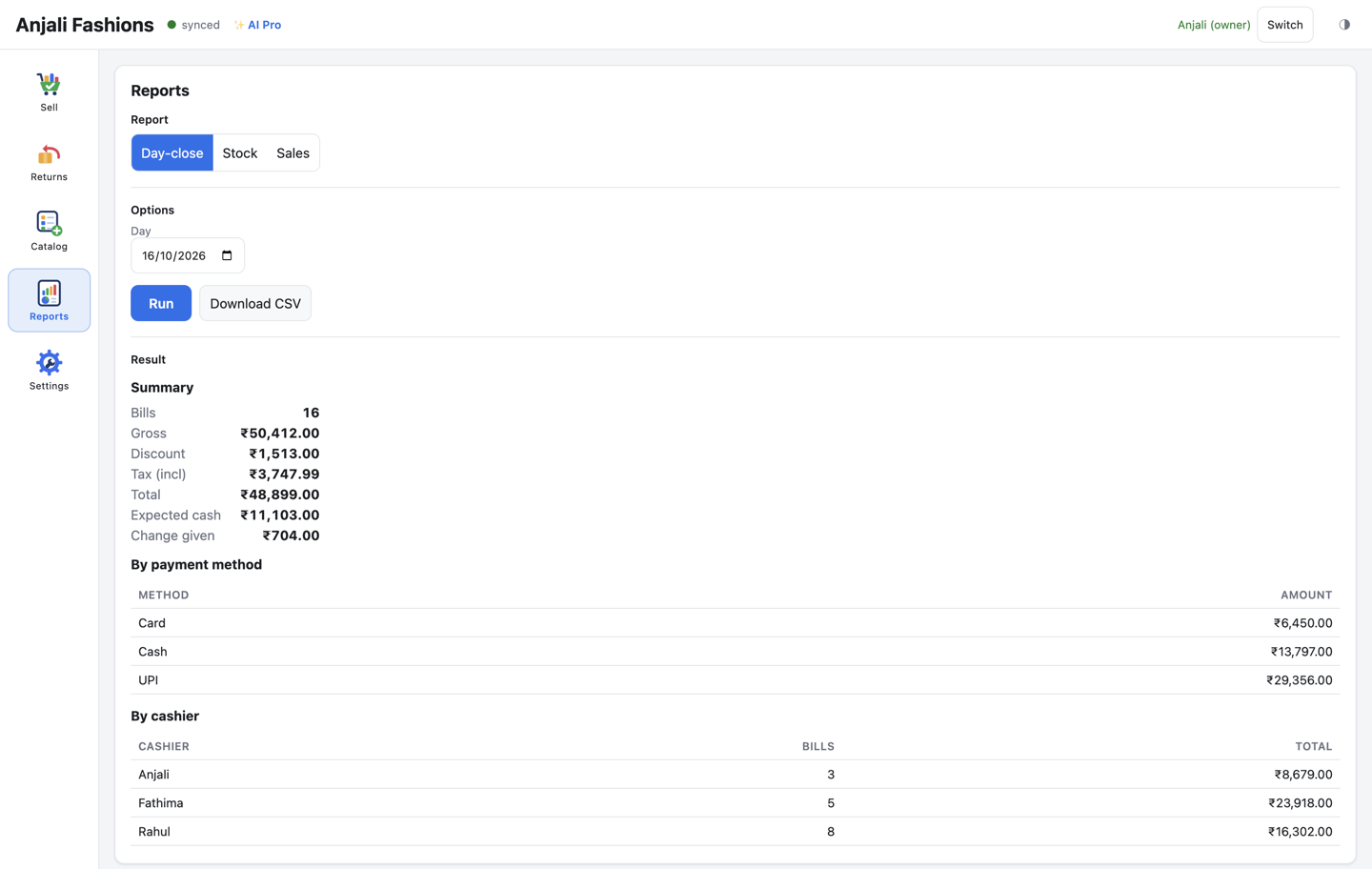
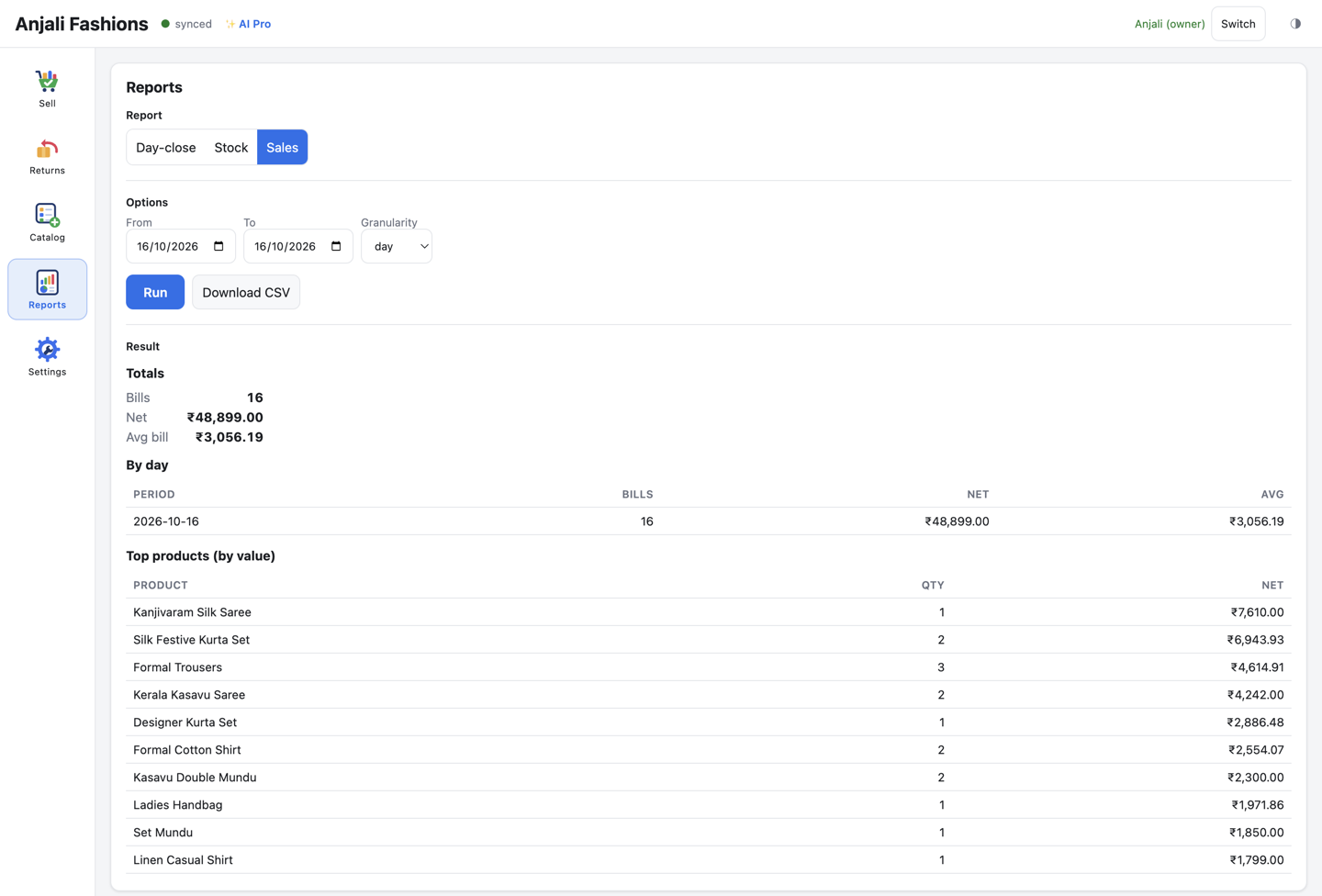
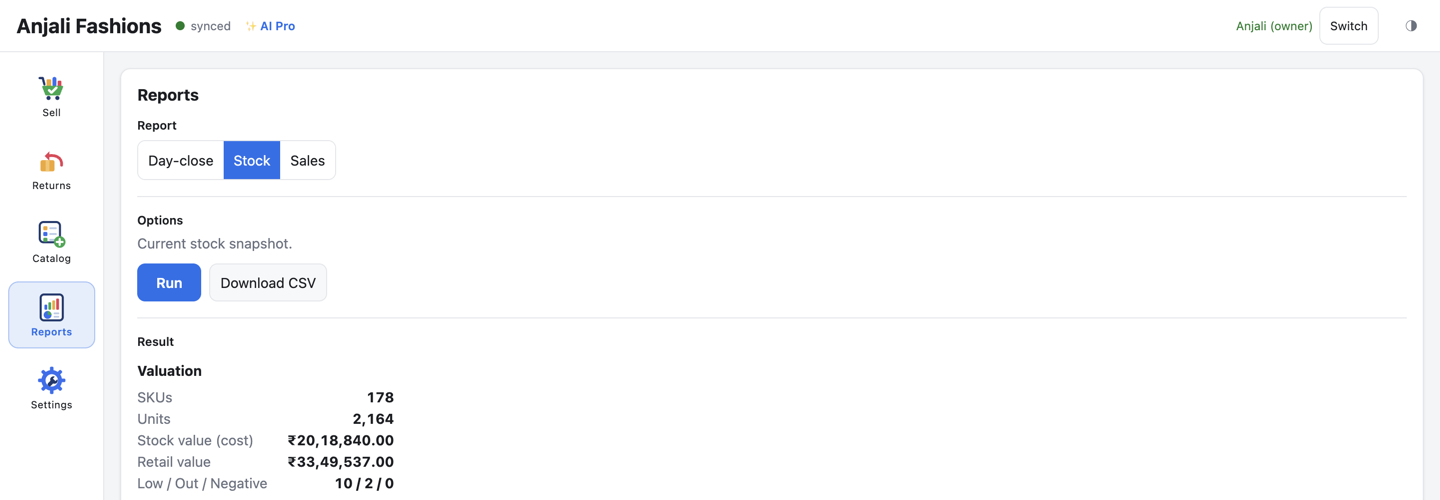
Owners can open the day close, sales and stock right at the counter: takings by payment method, the cash that should be in the drawer, and each cashier’s bills. Download any report as CSV.

Reports come from your web admin, so they need the internet. Billing doesn’t.

Day close

Day-close report on the till for 16 October: 16 bills with gross, discount, tax, total, expected cash and change given, then takings by card, cash and UPI, and bills by each cashier.
Expected cash in the drawer, takings by method, and each cashier’s bills.

Sales

Sales report on the till for one day: bills, net sales and average bill, a by-day table, and the top products by value.
Totals, average bill and top products, for any dates.

Stock

Stock report on the till: 178 SKUs, 2,164 units, stock value at cost and at retail, and counts of low, out-of-stock and negative items.
What you hold, valued at cost and at retail.

More at the counter

Sign in with a PIN, even offline

Each cashier picks their name and enters their own PIN or password, with or without internet. Every bill is recorded against the person who rang it up.
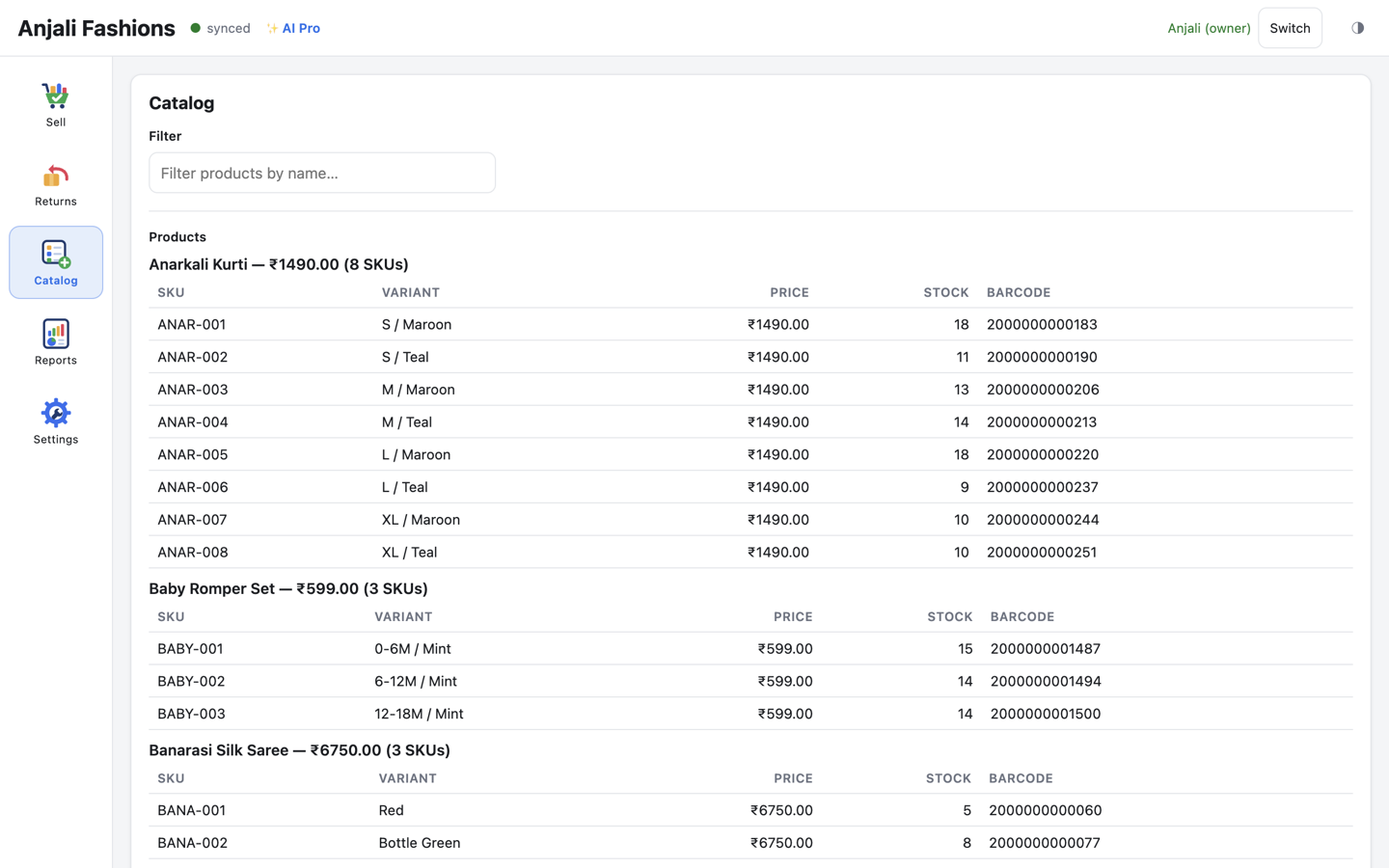
The till’s Catalog view: Anarkali Kurti with eight SKUs by size and colour, each with SKU code, price, stock and barcode, followed by more products.

The whole catalogue, on the till

Prices, barcodes and stock for every size and colour live on the till, so scanning keeps working offline. Changes come in from the web admin.

Hold a bill, serve the next customer

Park a bill with a note while the customer tries another size, then pick it up exactly where you left off. Held bills stay on that till.

AI Standard

“Often bought together”

Up to 3 one-click suggestions per cart, learned from 90 days of your own bills. It is plain statistics, not a chatbot, and uses no AI quota. On AI Standard and AI Pro.

  1. Measured on an Apple M1 Pro with Electron 44, an encrypted database and 5,000 products: three barcode scans, a split cash and UPI payment, and the receipt sent to the printer. Software time only; your PC and printer add their own time. ↩︎

Web admin

Run the shop from any browser

Dashboard, catalogue, stock, sales and reports in one place, on your laptop or desktop. Every till syncs to it in the background, every 15 seconds.

Dashboard

Your day, week or month at a glance

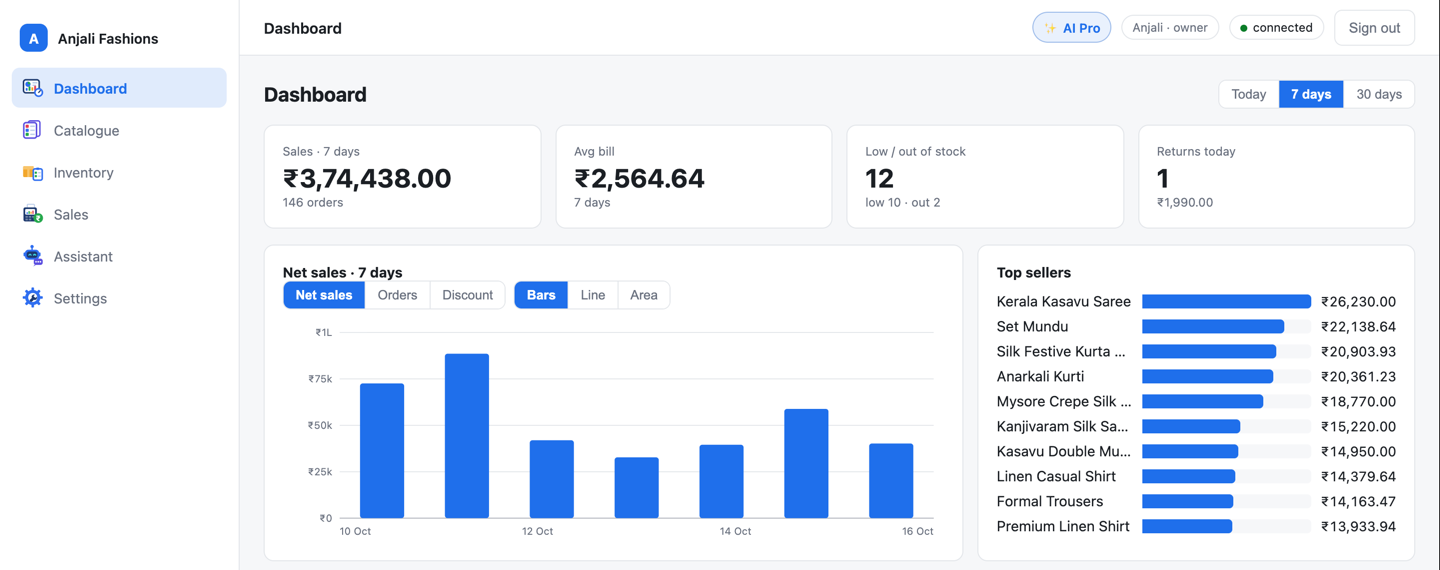
Sales, average bill, low stock and today’s returns, the moment you sign in. Switch between Today, 7 days and 30 days to see the trend and your top sellers.

  • Today’s payment mix, with the cash expected in the drawer
  • Stock health, valued at cost and at retail
  • GST collected today, by rate
  • Business Insights in plain words, on AI Standard and AI Pro
The web admin dashboard for the last 7 days: sales of ₹3,74,438 from 146 orders, the average bill, the low and out-of-stock count, returns today, a daily net-sales bar chart and a top-sellers list. The AI insights card from the bottom of the dashboard, with four points: restock the low and out-of-stock items, feature the top sellers, clear slow-moving stock, and watch weekend sales.
Example Demo store data. The AI insights card appears on AI Standard and AI Pro.

Catalogue

Every size and colour, with its own barcode

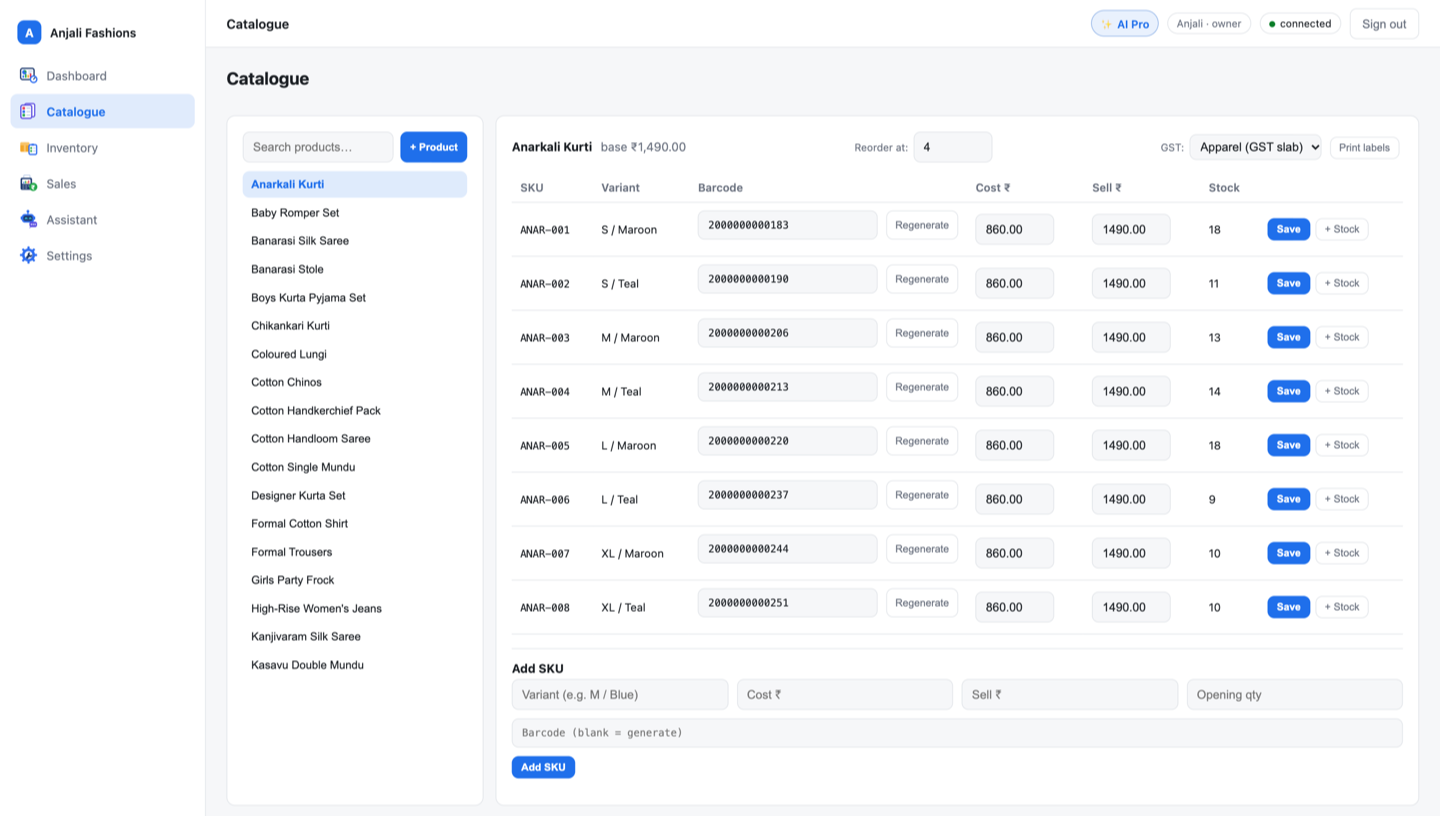
Add a product, then its variants. Each one gets an automatic SKU code, a barcode, cost and selling prices, and its own stock. Price changes reach every till on the next sync.

  • EAN-13 barcodes made for you, or keep the supplier’s
  • A GST category and reorder level for each product
  • Bring the whole list in from a CSV file
The Catalogue page: a product list on the left, and Anarkali Kurti open on the right with eight size and colour variants, each with SKU code, EAN-13 barcode, cost, selling price and stock, plus its GST category and reorder level.
One product, eight variants, each with its own code, barcode, price and stock.

Barcode labels

Print labels after every delivery

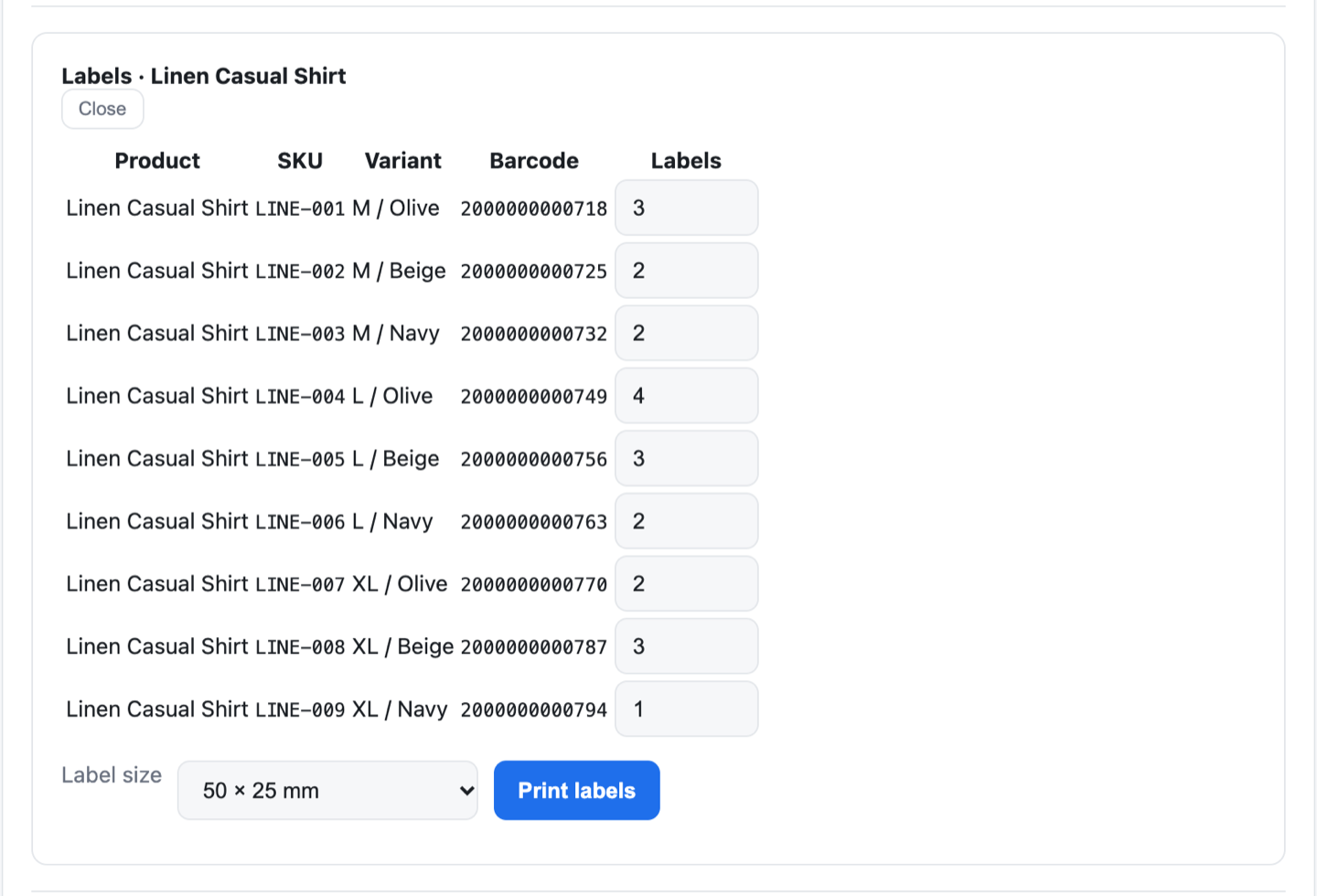
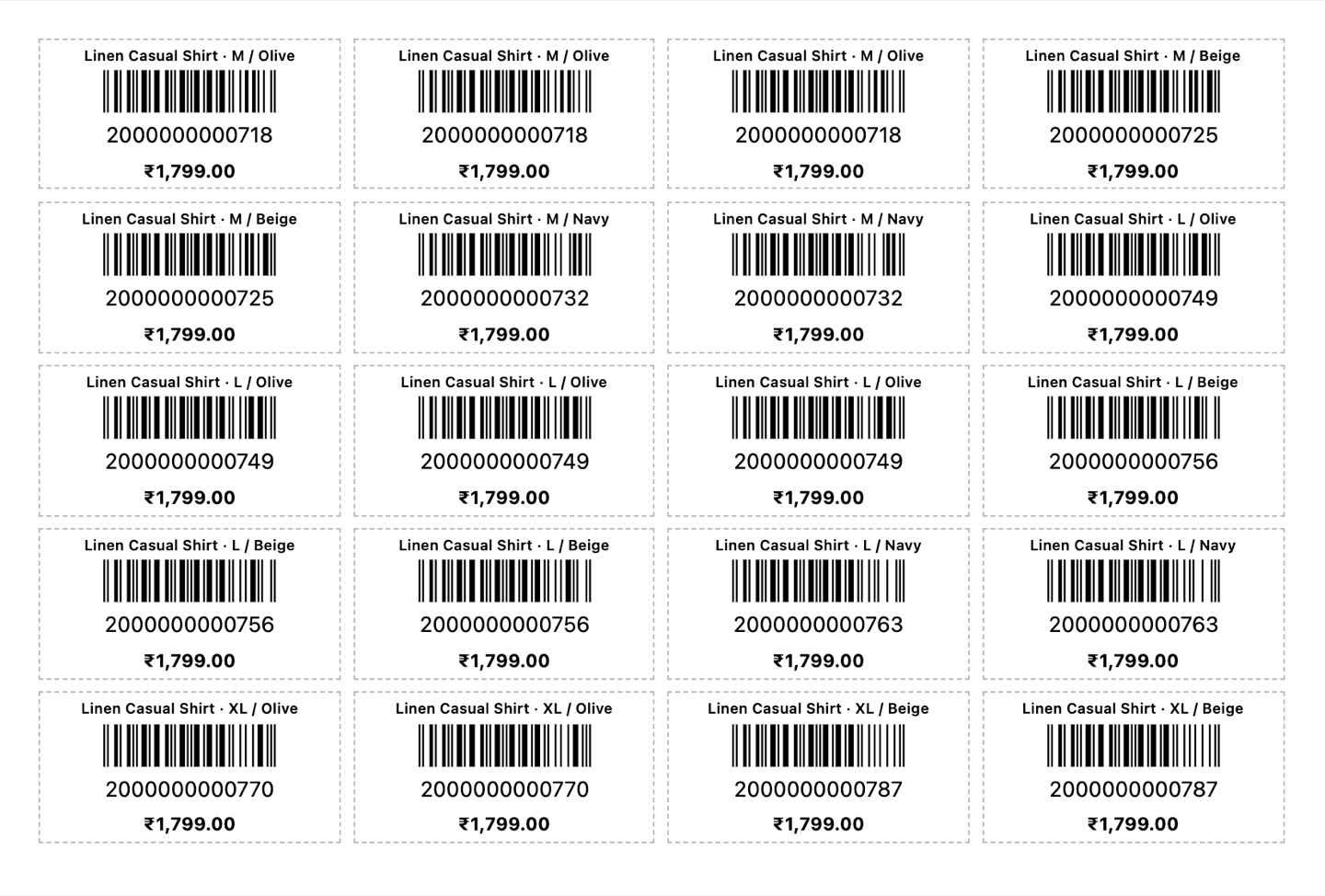
Choose how many labels each size and colour needs, pick a label size and print. Each label carries the item, its variant, the barcode and the price.
  • Three label sizes: 38×25, 50×25 and 65×38 mm
  • Offered straight after you receive stock, with the counts filled in
The label picker for Linen Casual Shirt: nine size and colour variants with SKU code, barcode and a label count for each, a label-size menu set to 50 × 25 mm, and a Print labels button. A printed sheet of barcode labels, each showing Linen Casual Shirt with its size and colour, an EAN-13 barcode and the price ₹1,799.
Set the counts, choose a size, and print a sheet ready to stick.

Sales

Every bill from every till, in one list

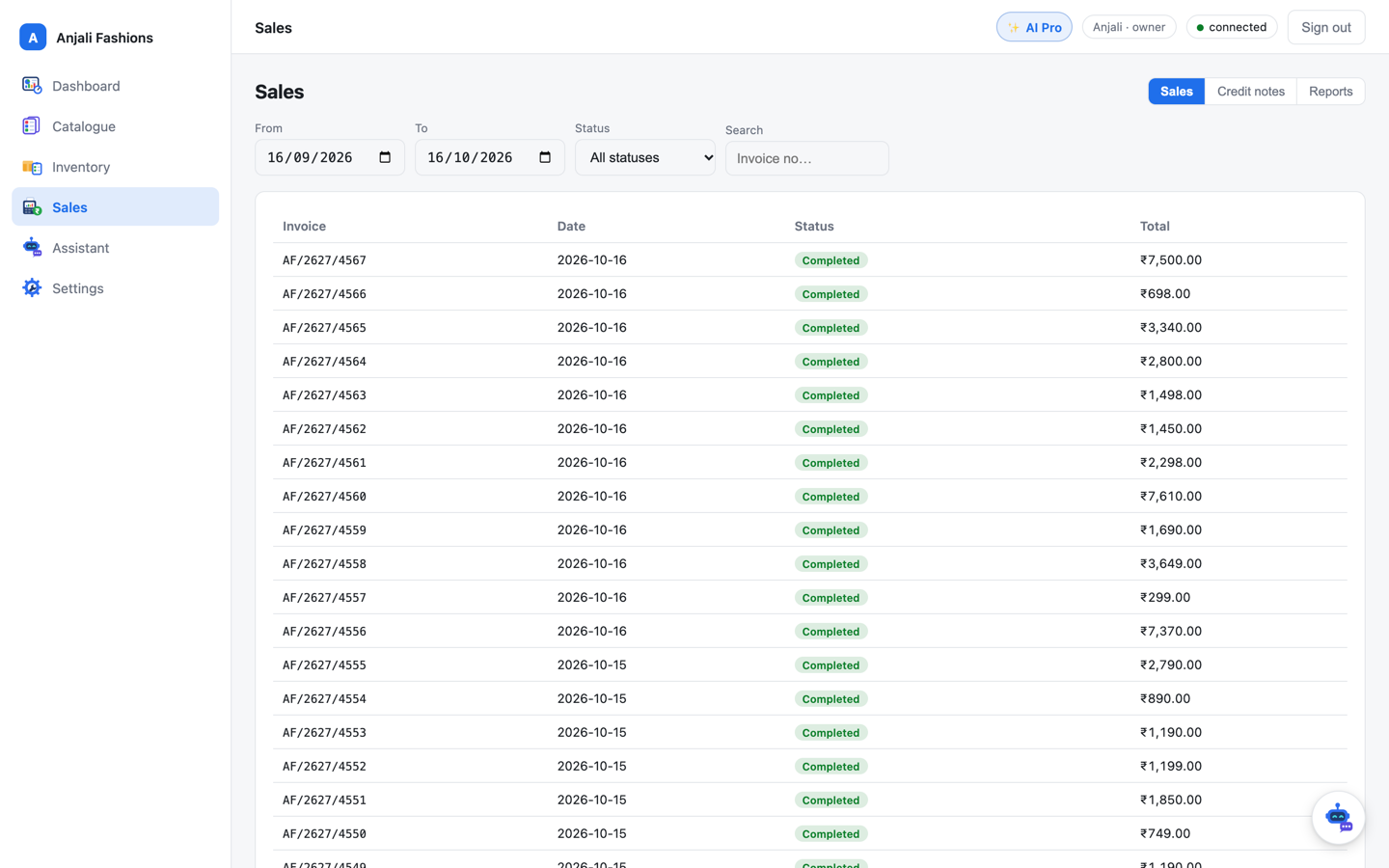
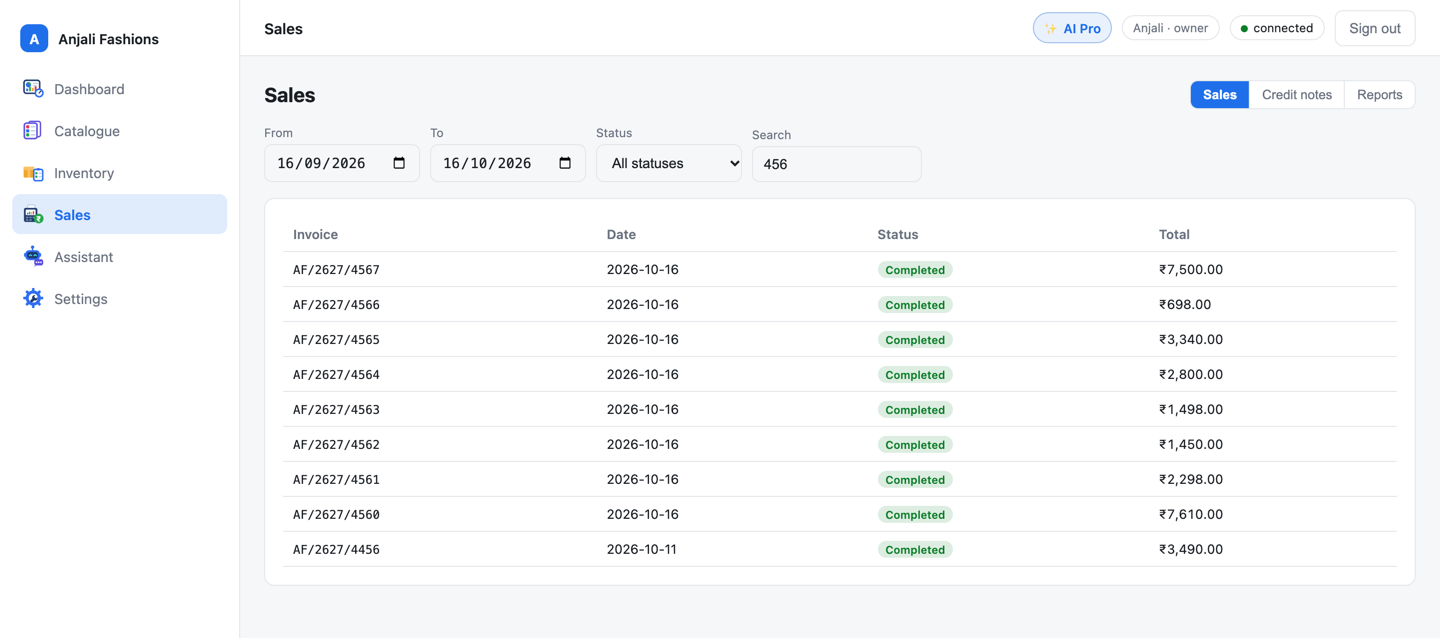
Filter by date and status, or search by invoice number. Open any bill to see each line’s discount and GST rate, how it was paid, and its A4 GST invoice.
All bills

The Sales list for the last month: invoice numbers such as AF/2627/4567, dates, Completed status and totals, with date, status and search filters above.
Every bill, newest first, with date and status filters.

Credit notes

Every refund, accounted for

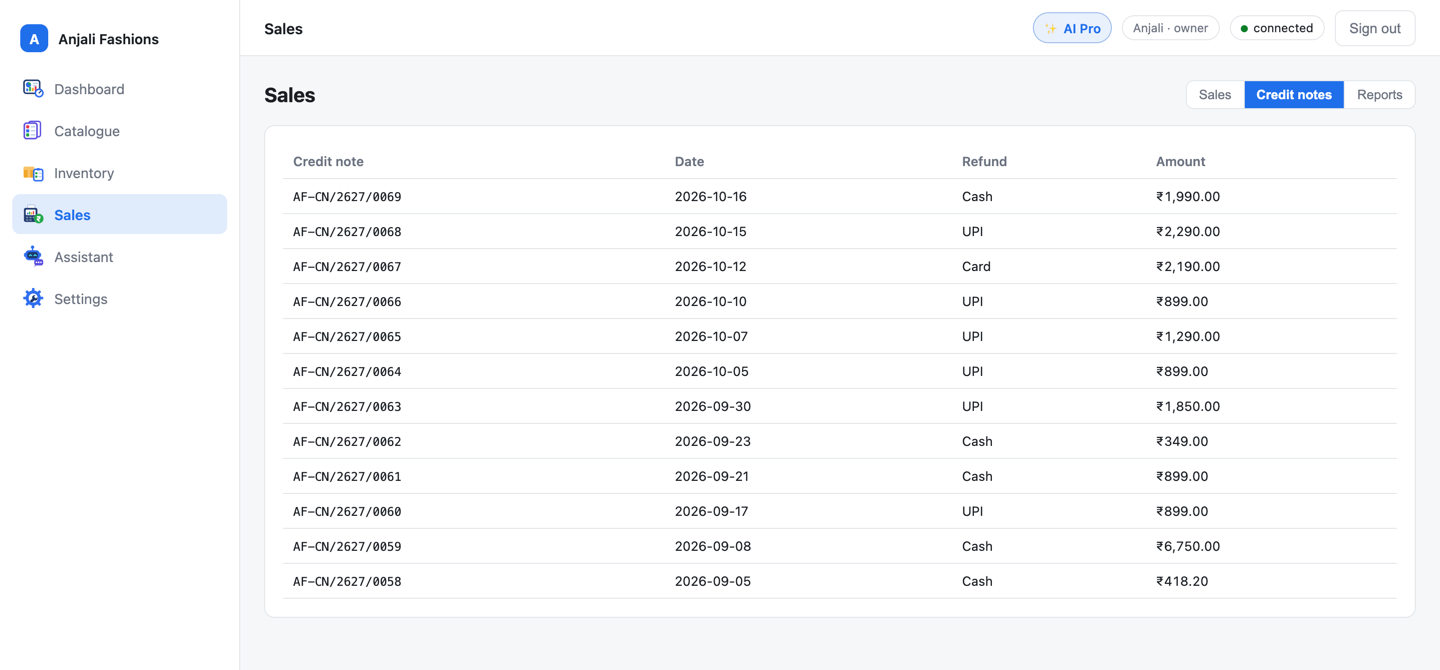
Returns made at the till arrive as numbered credit notes, in their own series. Open one to see what came back, the GST reversed and how the money went back.

The Credit notes list: numbers from AF-CN/2627/0058 to AF-CN/2627/0069, each with its date, refund method (cash, UPI or card) and amount.
Credit notes have their own number series, each with its refund method and amount.

Stock in, stock out

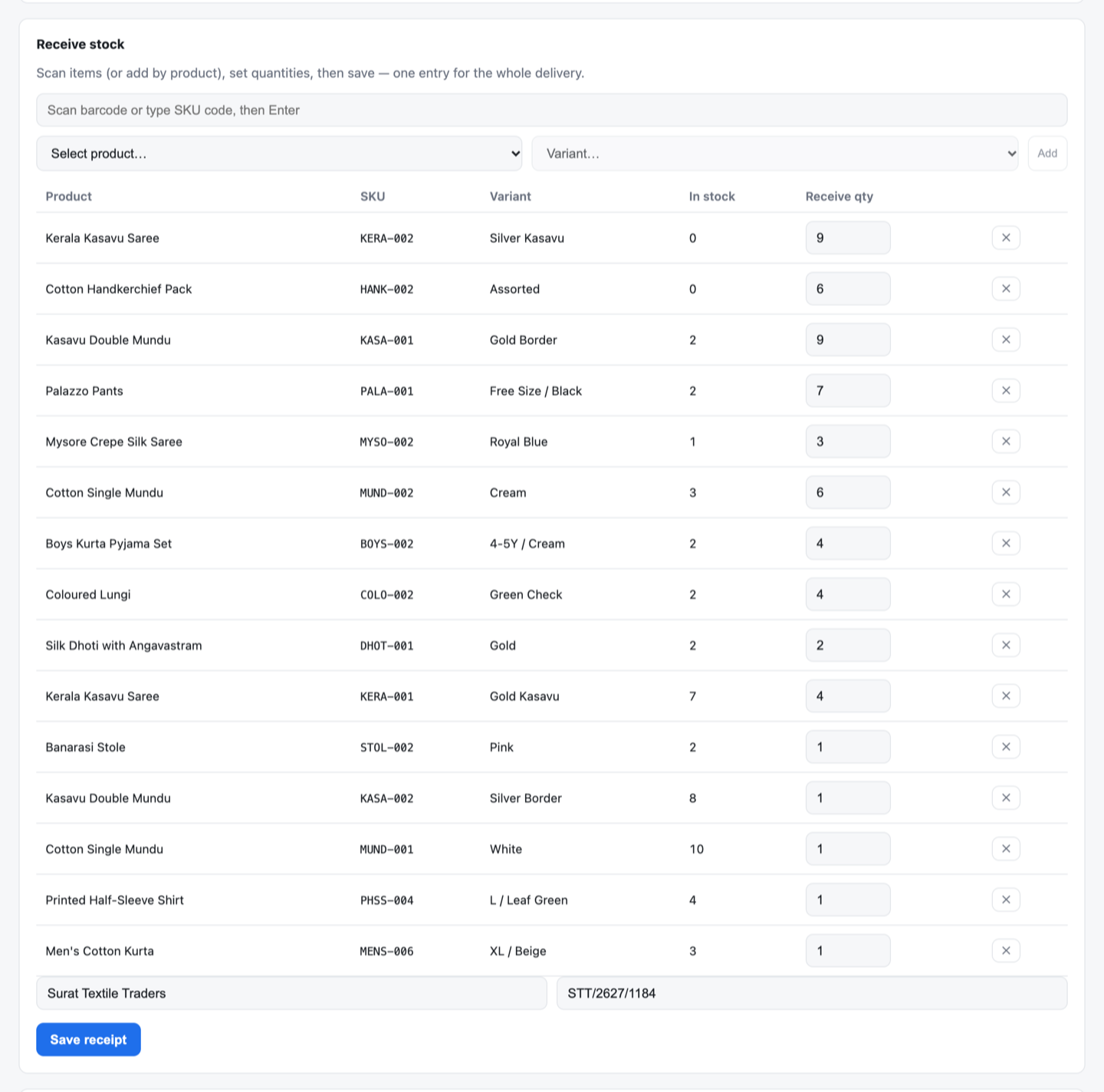
The Receive stock form: a box to scan a barcode or type an SKU code, then a list of delivered items with SKU, variant, current stock and the quantity received.

Receive a delivery by scanning

Scan each barcode or type the SKU code, set the quantities, add the supplier and their invoice number, then save the whole delivery as one entry.
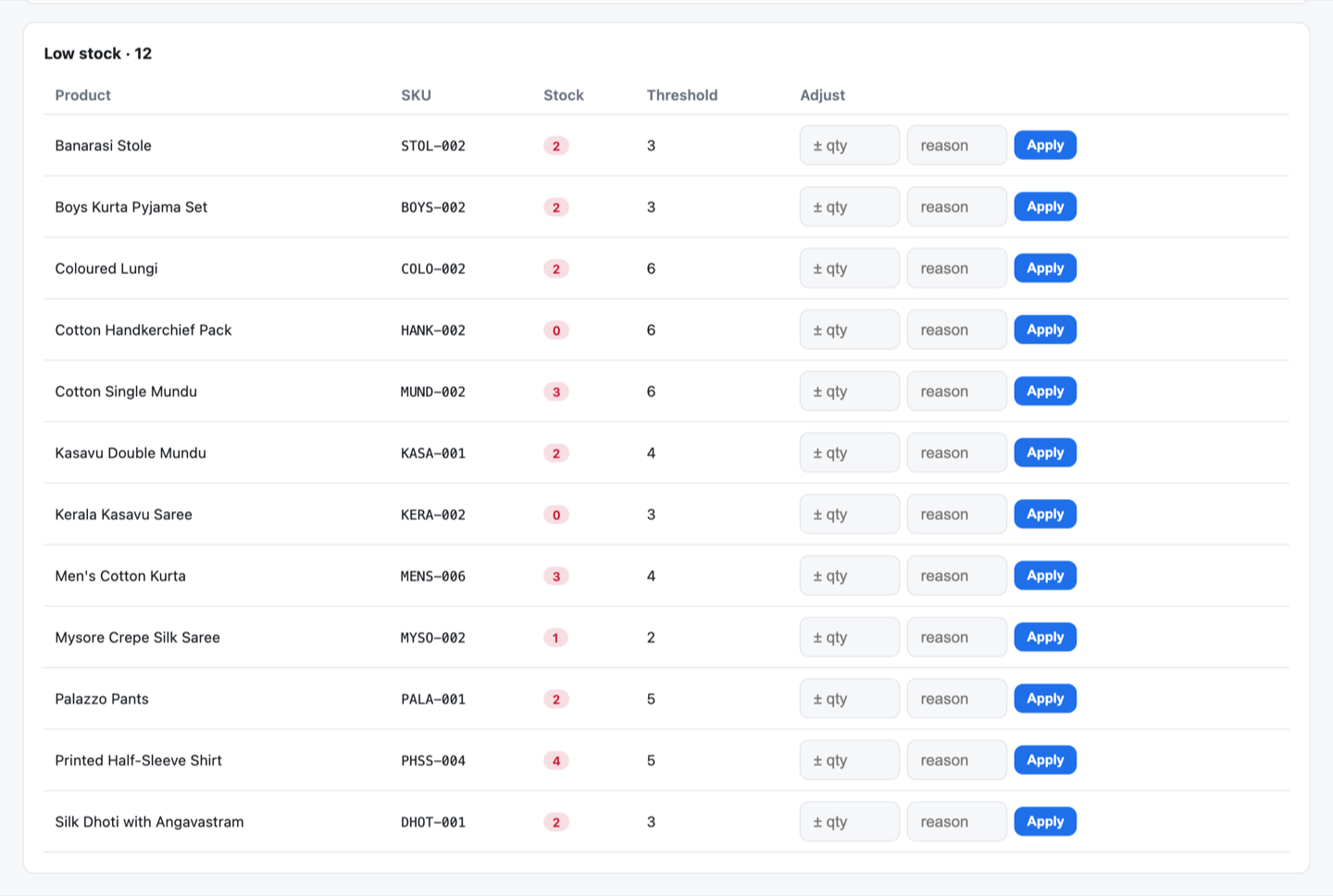
The Low stock list: items at or below their reorder level, with SKU, current stock highlighted in red, the threshold, and a quantity and reason box to adjust each one.

See what is running low

Set a reorder level for each product. The low-stock list shows everything at or below it, and lets you correct stock with a reason saved for each change.

Four reports, ready for your accountant

Pick any dates and see the totals on screen. The detail comes in the CSV download.

  • Sales

    Bills, gross sales, discounts, tax and net. The CSV adds a day-by-day breakdown with the average bill.
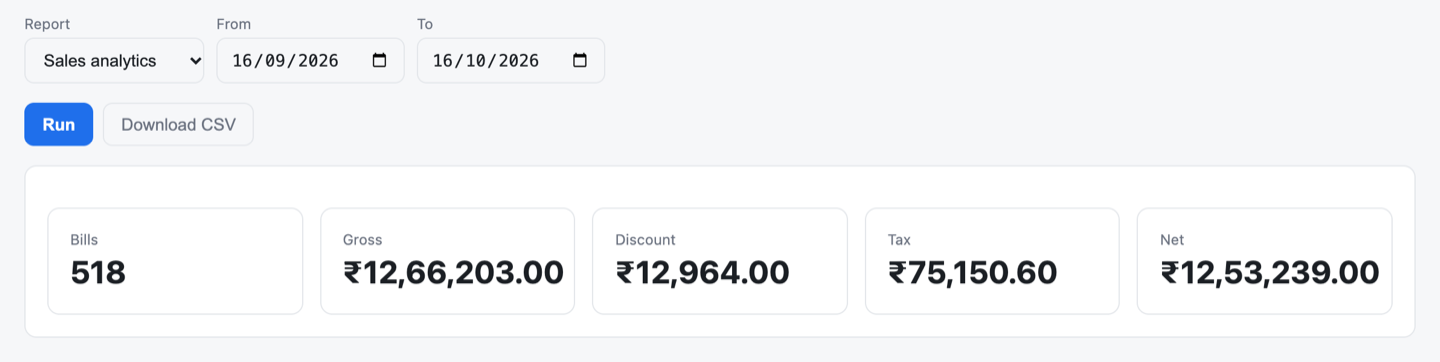
    Sales analytics report for 16 September to 16 October: 518 bills with gross, discount, tax and net totals, and Run and Download CSV buttons.
  • GST GSTR-1-friendly

    Invoices, taxable value, CGST, SGST and total tax. The CSV breaks it down by rate and by HSN, with credit notes taken off.
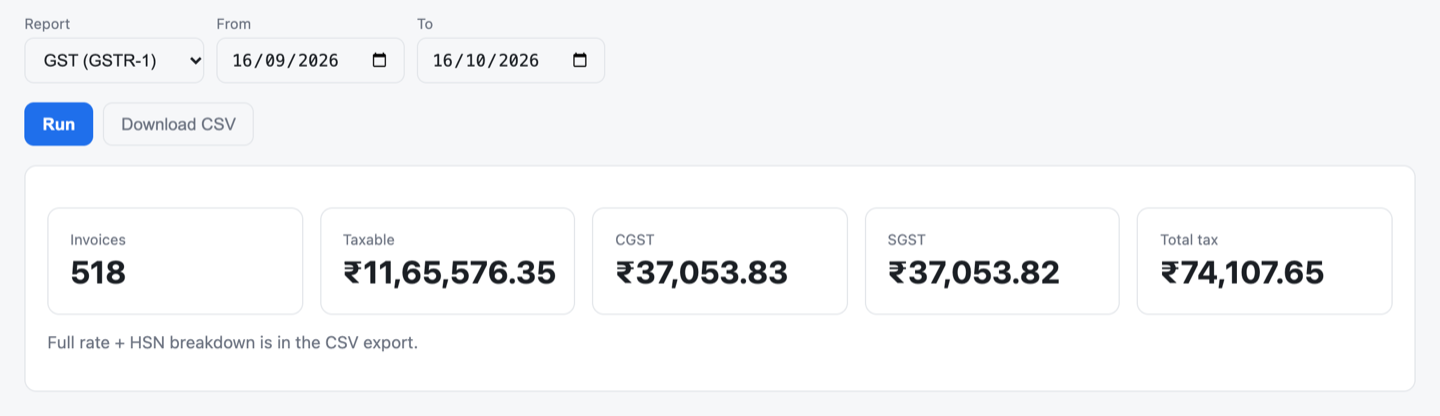
    GST (GSTR-1) report for the same month: invoices, taxable value, CGST, SGST and total tax, with a note that the rate and HSN breakdown is in the CSV.
  • Day close (Z)

    Bills, takings, refunds and net for any day. The CSV adds the expected cash, and totals by payment method, cashier and GST rate.
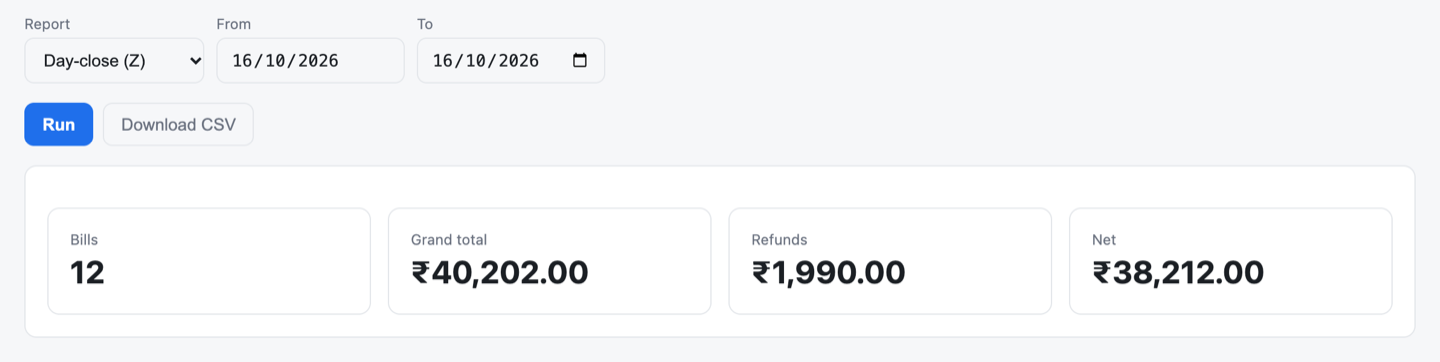
    Day-close (Z) report for 16 October: 12 bills, the grand total, refunds and net.
  • Stock and valuation

    Items and units on hand, valued at cost and at retail. The CSV lists every SKU with its stock status.

    Stock valuation report: 178 SKUs, 2,172 units, stock value at cost and the retail value.

Your team and your shop

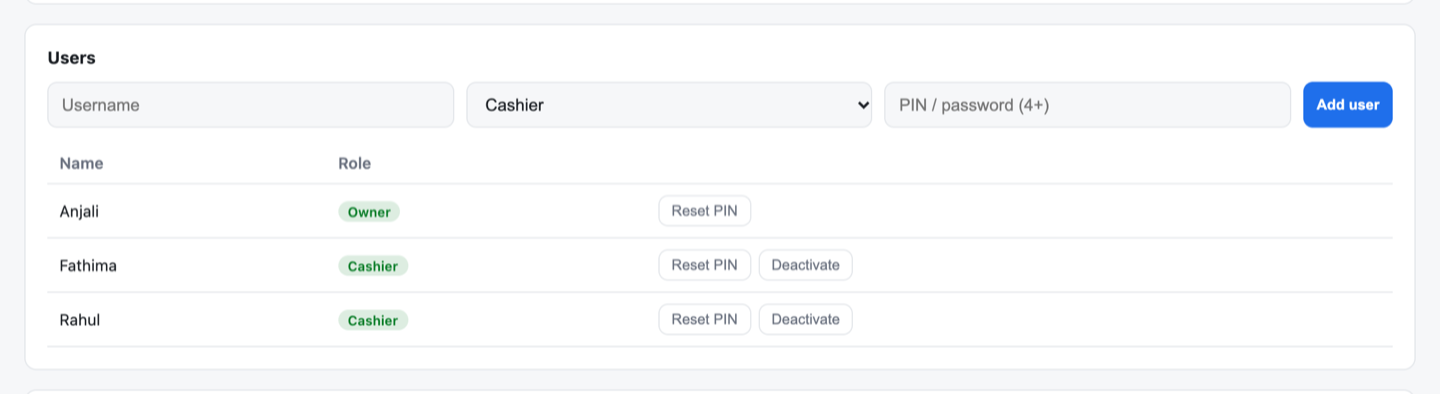
The Users settings: a form to add a user with a role and PIN, and a list of Anjali (owner), Fathima and Rahul (cashiers) with Reset PIN and Deactivate buttons.

Staff and roles

Add owners and cashiers, each with their own PIN or password. Reset a PIN or switch someone off in a click. New staff can sign in at the till once it syncs, even offline.
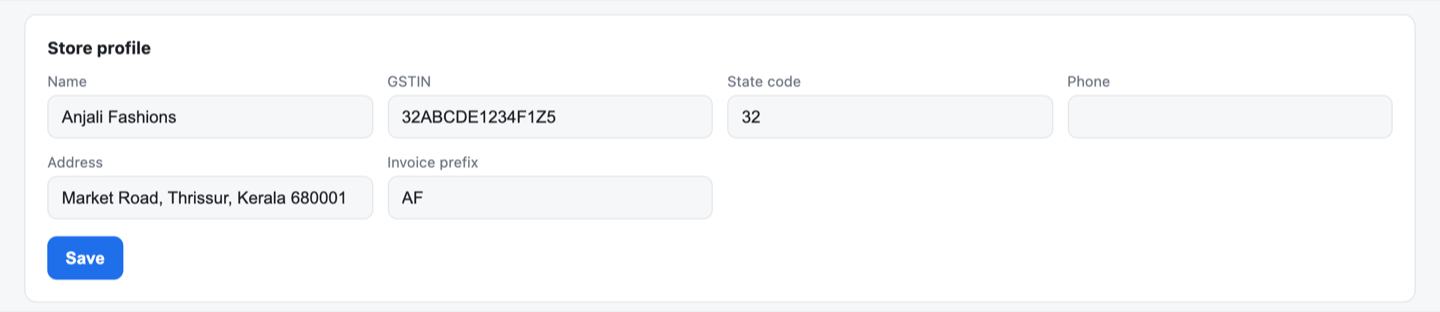
The Store profile form: shop name, GSTIN, state code, phone, address and invoice prefix, with a Save button.

Store profile

Your GSTIN, state code and address print on every bill; the invoice prefix numbers bills made in the web admin.

Dark mode

The web admin follows your computer’s light or dark setting, so late-night stock checks are easy on the eyes.

The AI lives here too. AI Standard adds Business Insights and the AI Assistant, which answers in English, Malayalam or Tamil. AI Pro adds Predictive Restock. Billing never depends on AI. Meet KadaAI Intelligence

The web admin is made for a laptop or desktop browser. The owner mobile app is coming soon.

GST billing

GST done right, even offline

Set your tax rules once. Every bill picks the right rate, splits CGST and SGST, and adds up to the paisa, whether the internet is up or not.

Tax categories

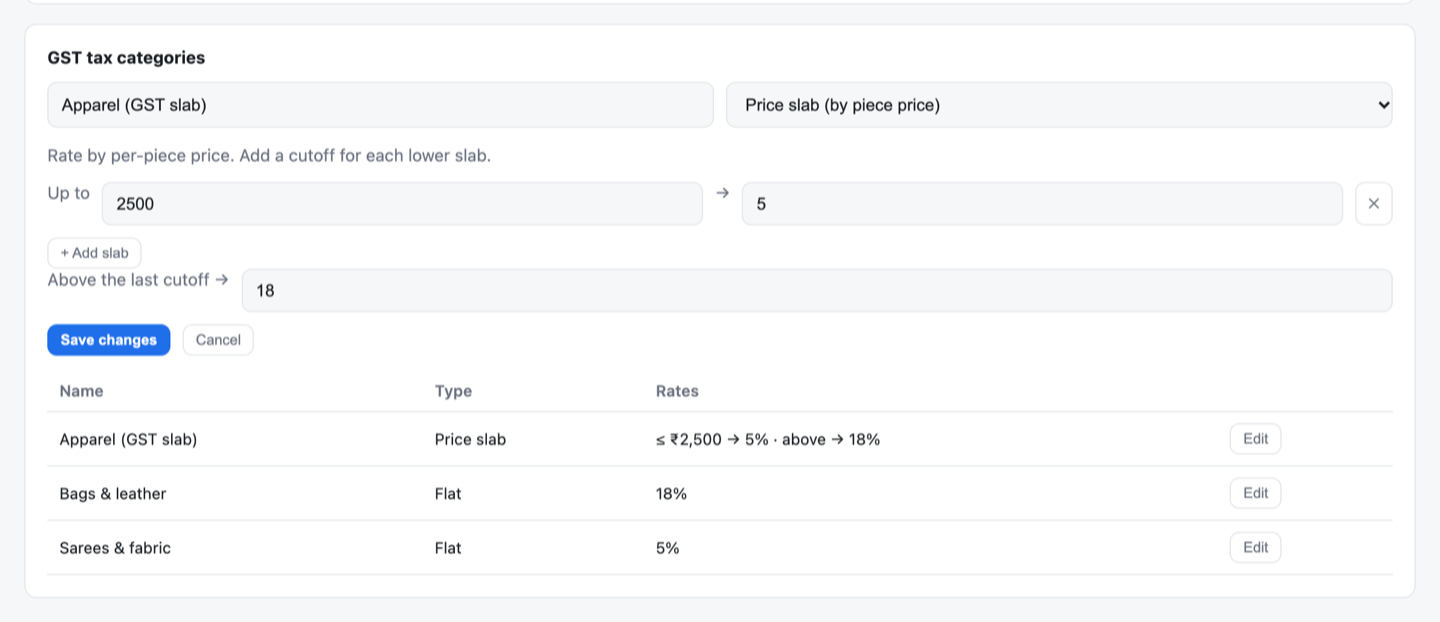
Flat rates or price slabs

Give each tax category a flat rate, or slabs by the price of one piece. Apparel at 5% up to ₹2,500 a piece and 18% above is a single rule. Cashiers never pick a rate.
  • Prices include GST, MRP-style
  • The rules sync to every till and are worked out there, offline
The GST tax categories settings: Apparel set as a price slab with 5% up to ₹2,500 and 18% above, alongside flat categories for bags and leather at 18%, and sarees and fabric at 5%.
Apparel’s price slab is one rule. Flat rates sit alongside it.

Discounts

Discounts come off before GST

A bill discount is shared across the lines before any tax is worked out. So the slab, the taxable value and the GST all follow what the customer actually pays.

  • Line and bill discounts both lower the GST correctly
  • The slab is chosen on the discounted price of one piece

One kurta, one discount

Example
Ticket price
₹2,600
Its share of the bill discount
−₹200
Price of the piece after discount
₹2,400

5%Lower slab. ₹2,400 is within the ₹2,500 limit, so this piece is taxed at 5%.

Before the discount, the same kurta would have been in the 18% slab.

Tax invoices

A proper A4 GST tax invoice

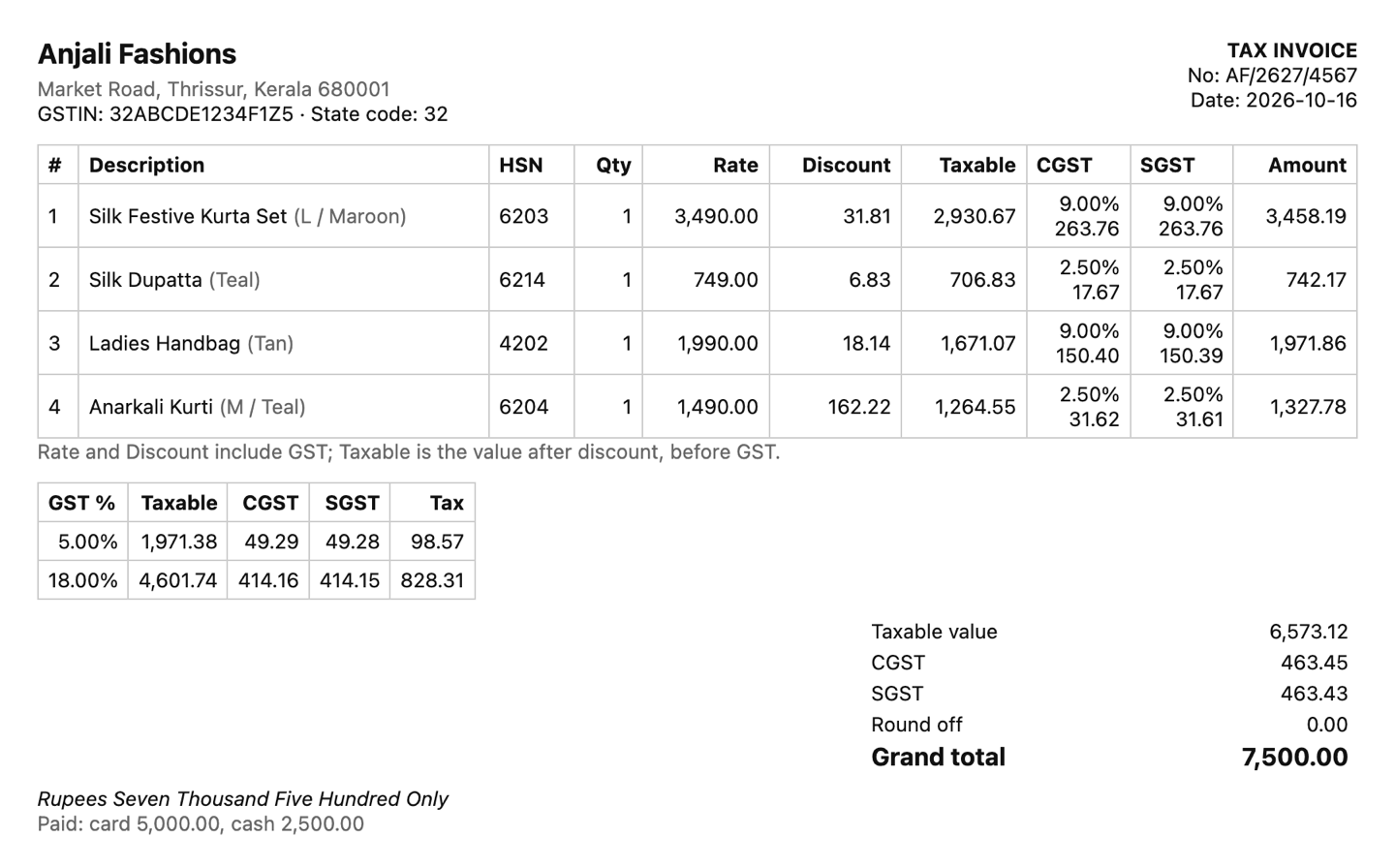
Print one from the till or the web admin, with HSN codes, the taxable value, CGST and SGST for each line and each rate, and the total in words, in lakh and crore.
  • Gap-free invoice numbers for each financial year: each till has its own series (T1, T2…)
  • Credit notes in their own series, with the GST reversed
  • HSN codes come from your catalogue import
An A4 GST tax invoice from Anjali Fashions, Thrissur: four items with HSN code, quantity, rate, discount, taxable value, CGST and SGST, a summary by GST rate, the grand total of ₹7,500 and the amount in words.
HSN, CGST and SGST for each line and each rate, and the amount in words.

On the tillNew

The receipt is the tax invoice, even offline

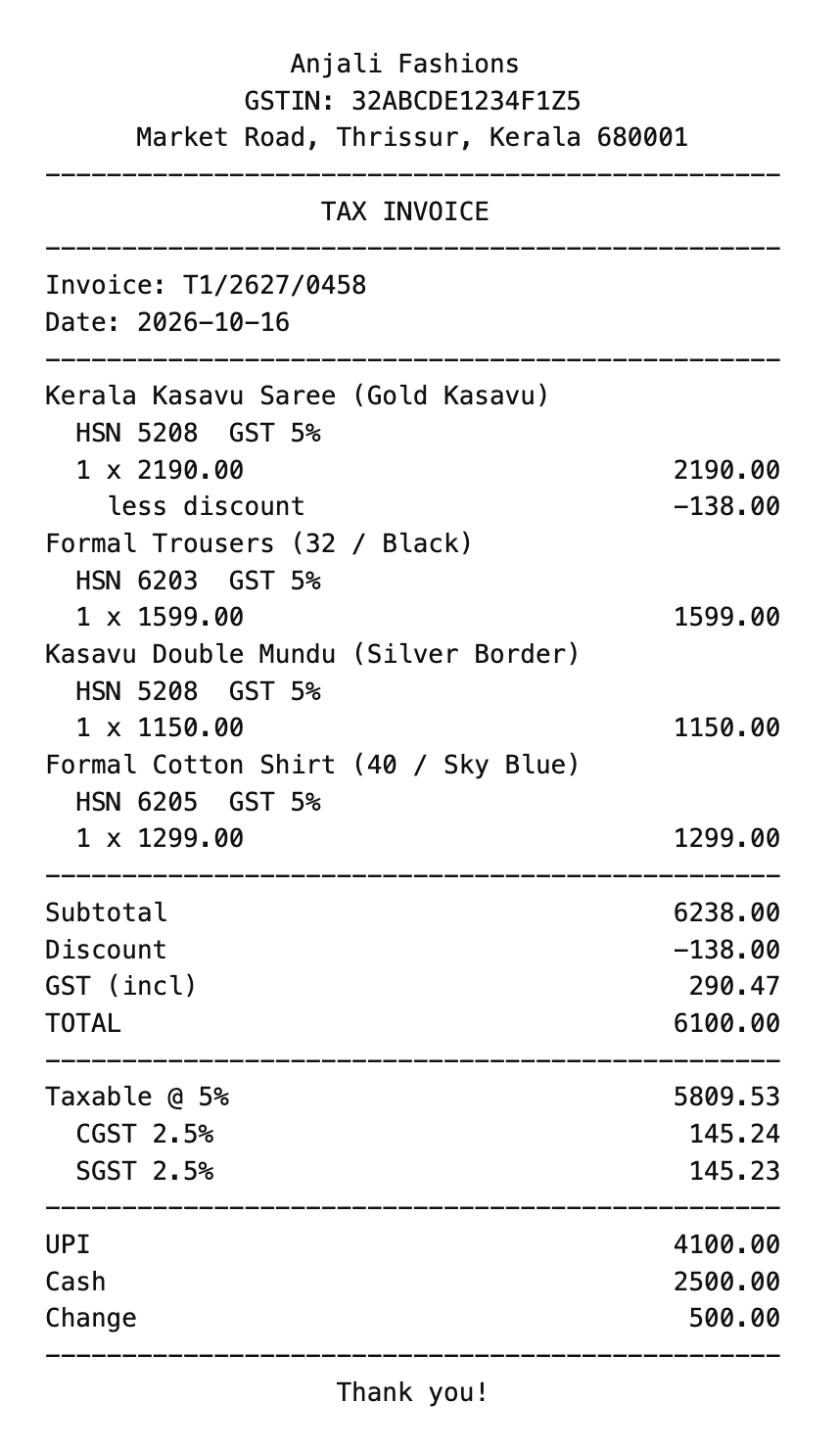
Each till now gets its own invoice series, like T1/2627/0001. So for a GST-registered shop, the bill printed at the counter is already the tax invoice: its final number, each line’s HSN, and the taxable value, CGST and SGST for each rate. No internet needed.
  • Gap-free for each till and each financial year
  • Several counters never clash on a number
An 80 mm receipt printed as a GST tax invoice: the TAX INVOICE title, invoice number T1/2627/0458, each line with its HSN code and 5% GST, the taxable value split into CGST and SGST, and the UPI and cash payment with change.
The till’s own invoice number, HSN and GST on every line, and CGST and SGST for each rate. Demo bill.

GST in KadaAI today

  • Worked out on the till, offline
  • Flat and price-slab rates
  • Discounts applied before GST
  • CGST and SGST on every invoice
  • HSN codes on the A4 invoice
  • Amount in words, in lakh and crore
  • Gap-free numbers per financial year
  • Credit notes that reverse the GST
  • GST report (GSTR-1-friendly) as CSV
  • New: each till’s own invoice series

Not yet

  • E-invoices (IRN) and e-way bills
  • IGST and B2B invoices with the buyer’s GSTIN
  • Cess
  • A GSTR-1 upload file: the GST report is a CSV for you or your accountant

Every sale is billed as a local (intra-state) sale today. See the roadmap

Printing

Receipts, invoices and labels

Thermal receipts on 58 or 80 mm paper, A4 GST invoices, and barcode labels for your stock.

  • Thermal receipts

    Printed after every sale on an ESC/POS thermal printer, on 58 or 80 mm paper.

  • No thermal printer yet?

    The till lays out the receipt and opens your computer’s print dialog instead.

  • Reprint the last receipt

    One click when a customer asks for another copy.

  • A4 GST invoice

    From the till or the web admin. More on GST

  • Barcode labels

    Label sheets in 3 sizes: 38×25, 50×25 and 65×38 mm.

An 80 mm thermal receipt from Anjali Fashions printed as a GST tax invoice: GSTIN and address, invoice T1/2627/0458, four items with HSN and 5% GST, a ₹138 discount, a ₹6,100 total, taxable value with CGST and SGST, and ₹4,100 by UPI plus ₹2,500 cash with ₹500 change.
80 mm receiptThe UPI and cash bill from above, as its tax invoice.

Many tills

Add every counter you need

Unlimited tills per store by default, from a single counter to a busy showroom floor. Each till has its own key, and all of them report to one web admin.

The Tills page

See every till, and switch one off

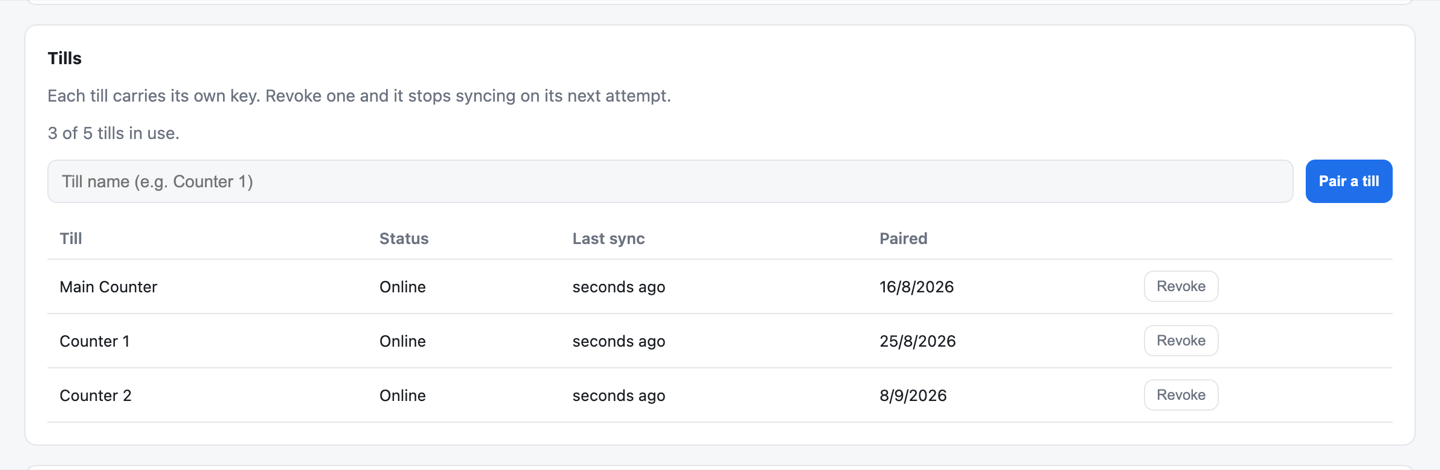
The Tills page shows each counter, whether it is online, and when it last synced. Lost a laptop? Revoke its till in one click and it stops syncing.

  • Each till has its own device key; the server keeps only a hash of it
  • An optional till cap per store, to match your plan
  • Several tills can run on one PC
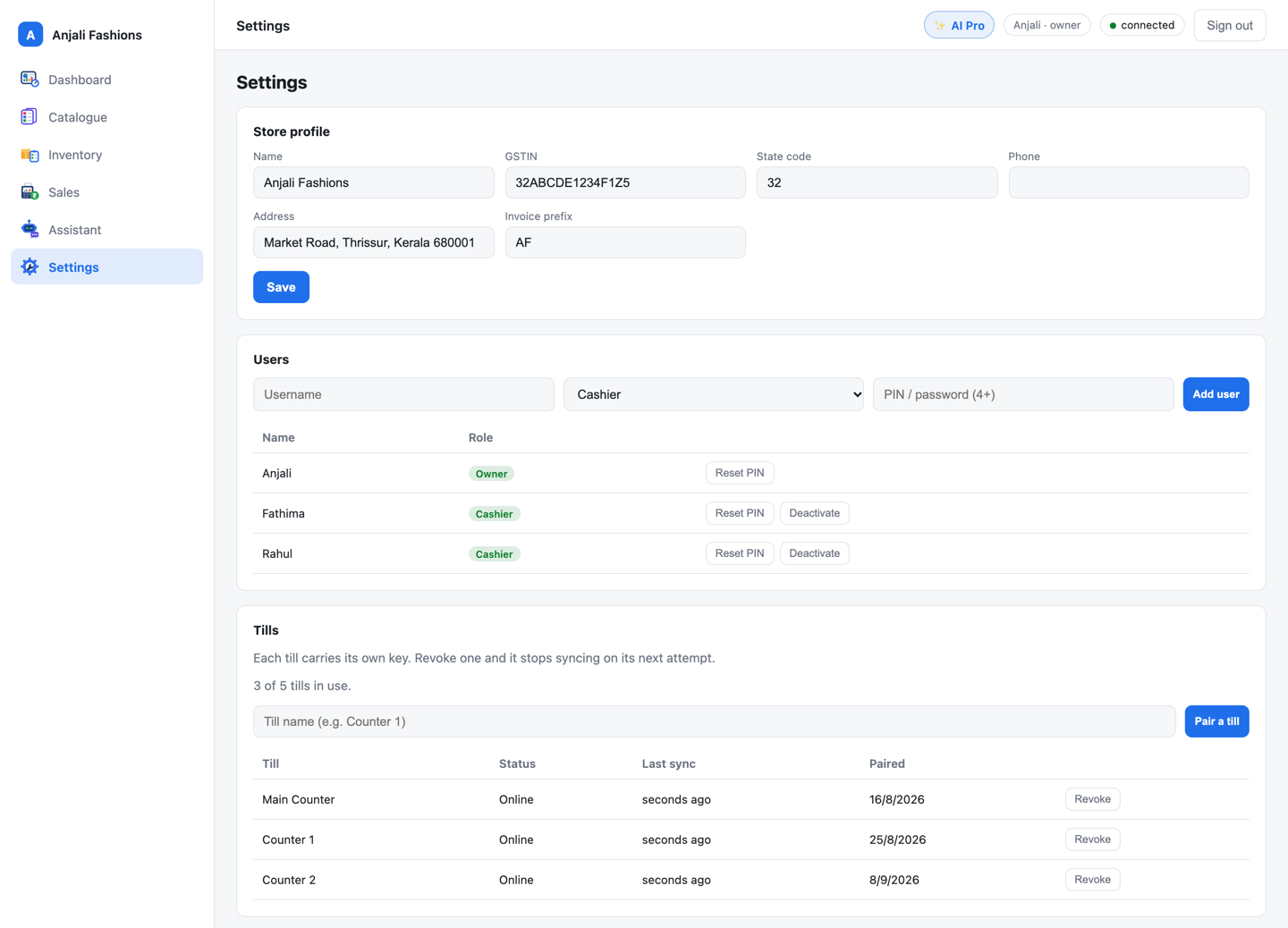
The web admin’s Settings page: the store profile with GSTIN and invoice prefix, the staff list with owner and cashier roles, and the Tills list showing three counters online. The Tills list: Main Counter, Counter 1 and Counter 2, each online and synced seconds ago, with the date it was paired and a Revoke button; 3 of 5 tills in use.
Store, staff and tills on one Settings page. Revoke a till in one click.

Every till syncs in the background every 15 seconds. A sale shows in your web admin within about 15 seconds, and a change reaches another counter within about 30 seconds. If the internet drops, each till keeps billing and catches up later. How sync works

Add a till in three steps

  1. Install the till

    On a Windows 10 or 11 PC.

  2. Pair it

    Five fields on its Setup screen: Backend URL, store code, till name, owner name and owner PIN.

  3. Start billing

    The catalogue and staff arrive at once, and offline sign-in works from then on.

Products

Your catalogue, your way

Any attributes and variants, automatic codes and barcodes, and a spreadsheet import for the whole list.

Variants

Size, colour, or whatever you sell by

Give products the attributes they need. Each size and colour you stock is its own item, with an SKU code, barcode, price and stock, and shows on the bill as “M / Teal”.

  • Automatic SKU codes, like ANAR-001
  • EAN-13 barcodes made for you, or the supplier’s own kept
  • A reorder level, so low stock shows up early

Anarkali Kurti₹1,490

Example

SizeSMLXL

ColourMaroonTeal

Variants of the example product, with SKU code and barcode
SKUVariantBarcode
ANAR-001S / Maroon2000000000183
ANAR-002S / Teal2000000000190
ANAR-003M / Maroon2000000000206
+ 5 more variants, each with its own price and stock

CSV import

Bring your list over from Excel

Fill in the 13-column template and save it as CSV. KadaAI checks every row first and shows what is wrong. Nothing changes until the file is clean, then it all goes in at once.

  • Missing SKU codes and barcodes are made for you
  • Re-import to update prices; stock is left alone

catalogue.csv

13 columns
  • product_name
  • category
  • brand
  • hsn_code
  • tax_category
  • attributes
  • sku_code
  • barcode
  • cost_price
  • sell_price
  • mrp
  • opening_stock
  • low_stock_threshold
  1. Validate: a dry run that checks every row and changes nothing.
  2. Apply: all rows go in together, or none do.

Built first for clothing and textile shops. Quantities are whole numbers, so weighed or loose goods are not supported yet, and nor are batches or expiry dates. They are on the roadmap.

Coming soon: product images, so staff can pick items by picture.

Customise

Make the till your own

Light or dark, your shop’s colours, and the layout and text size your staff prefer. Each till keeps its own look.

Settings, Appearance

Set it once per counter

  • 2Themes: light and dark
  • 5Accent colours, or any colour you pick
  • 2Sell-screen layouts
  • 2Densities: comfortable or compact
  • 3Text sizes
  • 3Billing-screen font sizes
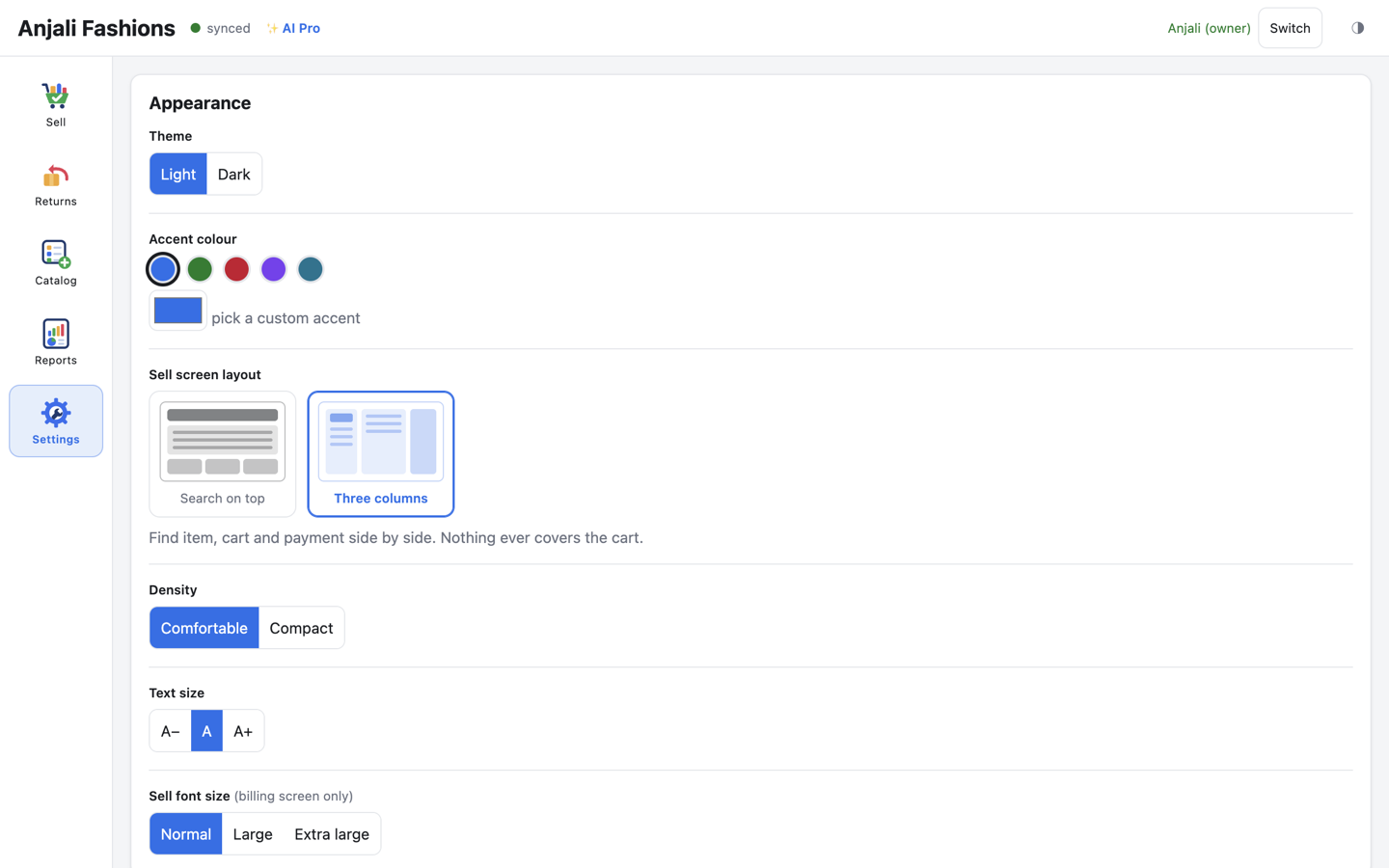
The till’s Appearance settings: light and dark theme, five accent colours plus a custom colour, two sell-screen layouts with Three columns selected, comfortable or compact density, three text sizes and three billing-screen font sizes.
Theme, accent, layout, density and text size, set for each till.
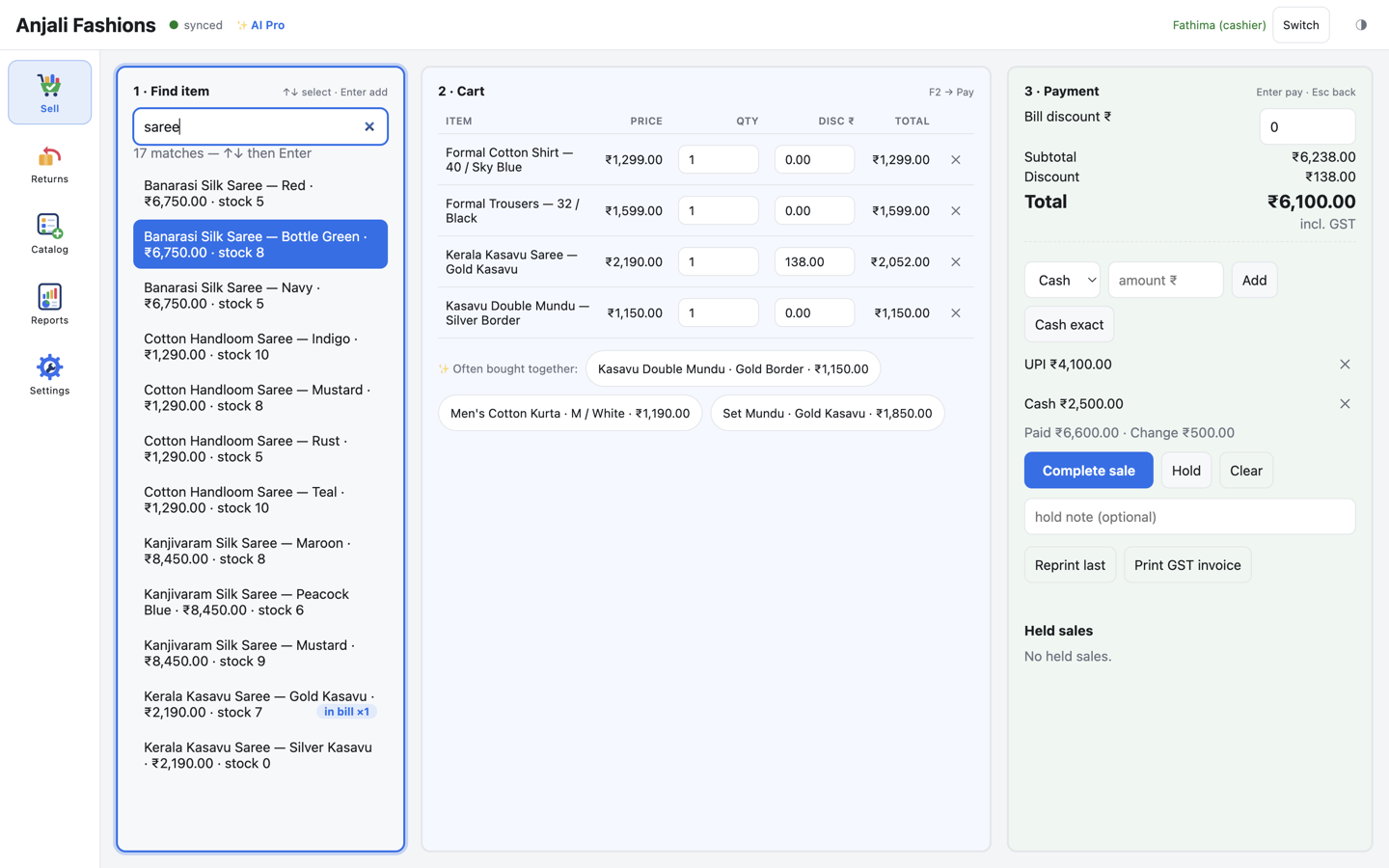
The sell screen in the three-column layout: search results for “saree” on the left, the cart in the middle, and payment on the right with a UPI and cash split.

Three columns

Search, cart and payment side by side, so nothing ever covers the bill. Or keep search on top, with the cart below.

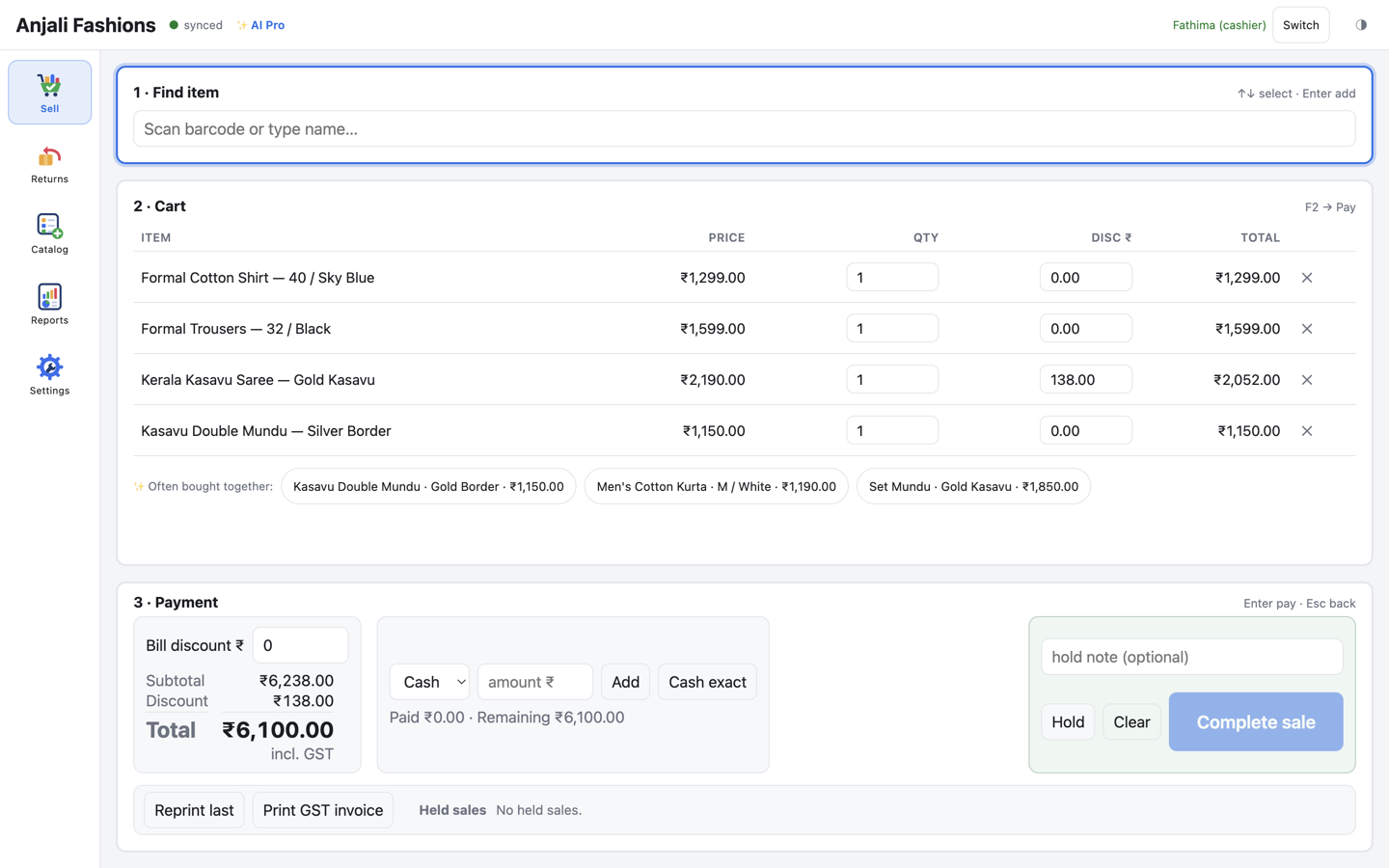
The sell screen in the dark theme, with the same four-item cart and the payment panel.

Dark theme

Easier on the eyes at a dim counter. Switch from the top bar whenever you like.

Platforms

Where KadaAI runs

The till installs on Windows today. The web admin opens in any modern browser on a laptop or desktop.

Available

Windows till

Windows 10 and 11, on x64 and Arm64 PCs, with a standard installer.

Available

Web admin

Any modern browser on a laptop or desktop. Nothing to install: sign in and run the shop.

Early access

macOS till

The till runs on Mac. The installer is in early access.

Coming soon

Android till

A till app for Android devices.

Coming soon

Owner mobile app

Keep an eye on the shop from your phone.

What you need

A Windows 10 or 11 PC. Optional: a USB or Bluetooth barcode scanner that types like a keyboard, and an ESC/POS thermal printer. Updates are free while you subscribe.

See the guides

Free for 30 days

Try every feature on your own counter.

Everything is included in the trial: AI Pro, the daily backup and up to 3 tills. No card needed. We’ll get you set up.

Indicative launch pricing applies after the trial. Prices exclude GST.