Download

Download the KadaAI till

The billing app for your counter. It scans, bills and prints, and every sale is saved on the PC first, so the counter keeps going when the internet doesn’t.

  • Windows 10 and 11
  • x64 and Arm64
  • Updates are free while you subscribe

Choose your platform

Windows 10 and 11

Available now

The full till for your counter: scanning, billing, GST, receipts, returns and owner reports.

  • Keeps billing offline and syncs every 15 seconds
  • The till’s database is encrypted with AES-256
  • Updates are free while you subscribe

Intel or AMD PC x64

For Windows 10 and 11 on Intel or AMD (x64) PCs.

Request the installer

Arm PC Arm64

For Windows 10 and 11 PCs with Arm processors.

Request the installer

For now we send the installer by email: the button opens a ready-made message to us.

Not sure which? Most Windows PCs are x64. Open Settings → System → About and look at System type.

Coming soon

Android till

The KadaAI till as an Android app for your counter.

Coming soon

Owner mobile app

Keep an eye on the shop from your phone. Until then, open the web admin on a laptop or desktop.

32-bit Windows and Linux are not supported.

Before you start

What you need

One Windows PC is enough to start. Add a scanner and a receipt printer when you’re ready.

Required

A Windows PC

Windows 10 or 11, 64-bit: an x64 or Arm64 PC.

Optional

Barcode scanner

A USB or Bluetooth scanner that types like a keyboard. Scan, and the item is on the bill.

Optional

Receipt printer

An ESC/POS thermal printer for 58 mm or 80 mm rolls, which we set up with you. Or print through Windows to a printer you already have.

Now and then

Internet

To pair the till and to sync. Billing, GST and receipts work without it.

Keep the counter PC locked. The till’s data is encrypted with AES-256, using a key Windows keeps for the account the till runs in. Give that account a real password and turn off automatic sign-in. How we protect your data

Install

Install in 4 steps

Download, run, open, pair. You pair each till once, and it remembers your store from then on.

  1. Download

    Save the installer for your PC: x64 for most PCs, Arm64 for Arm ones.

  2. Run the installer

    Double-click it. If Windows SmartScreen appears, choose More info, then Run anyway.

  3. Open KadaAI Till

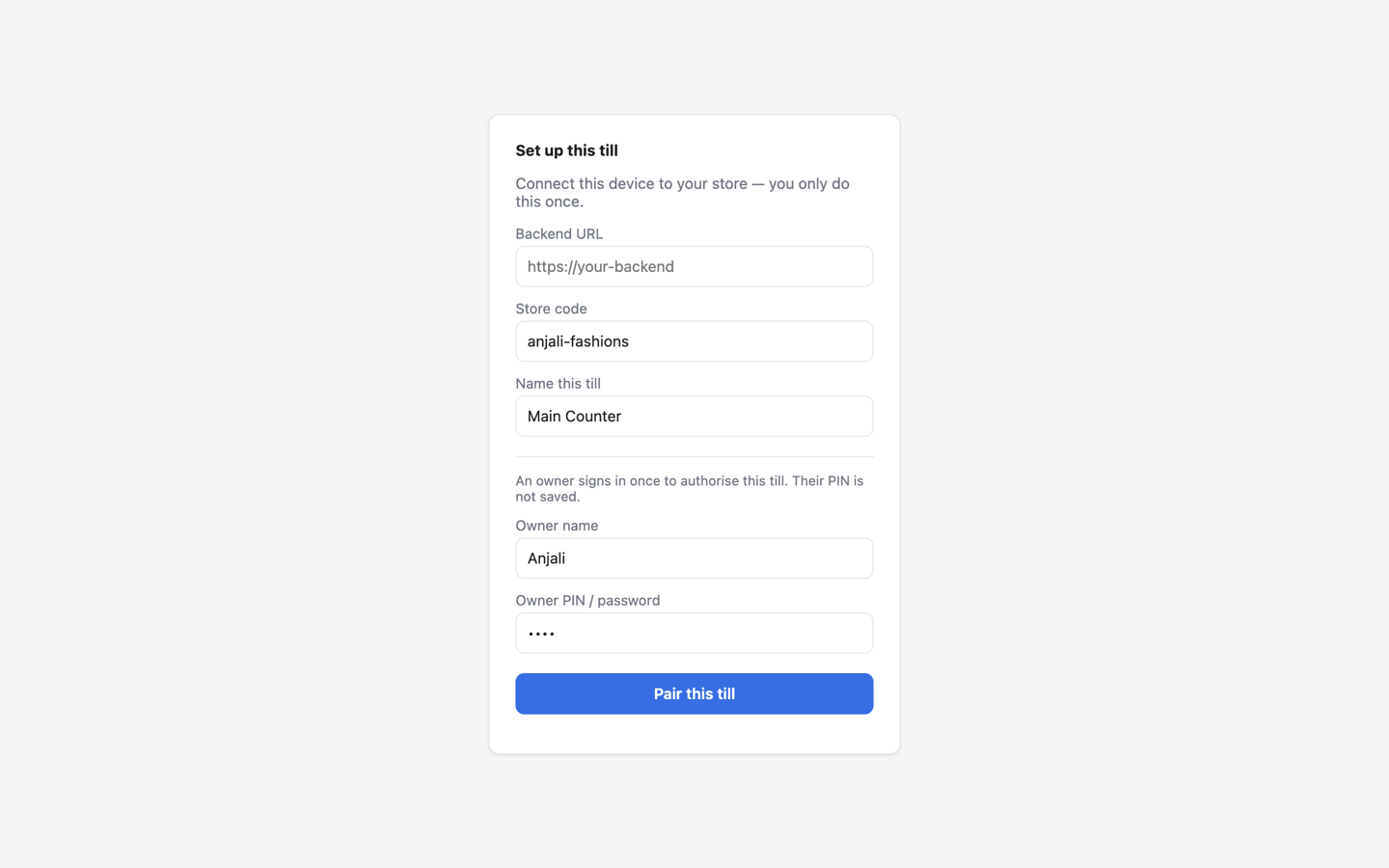
    It opens on the Set up this till screen the first time.

  4. Pair with your store

    Five fields: the Backend URL and store code from your welcome details, a name for this till, and the owner’s name and PIN.

Why Windows asks “Are you sure?”

Our installer isn’t code-signed yet, so Windows SmartScreen can’t show a publisher name and says Windows protected your PC. That is a missing signature, not a problem with your PC. Download the installer only from kadaai.in or a link we send you, then:

Choose More info, then Run anyway.

Step 4, up close

Pair it once, with five fields

The Setup screen links this PC to your store. We send you the first two fields when we set up your store.

  • Backend URLYour store’s server address, from your welcome details.
  • Store codeYour shop’s short code.
  • Name this tillWhere it sits, like Counter 1.
  • Owner name and PINThe owner signs in once to approve this till. The PIN isn’t saved on the till.
The till’s Set up this till screen with five fields filled in: Backend URL, store code anjali-fashions, till name Main Counter, owner name Anjali and a hidden PIN, above a Pair this till button.
The Setup screen you see the first time the till opens.

After pairing

Your catalogue and staff arrive. Sign‑in works offline.

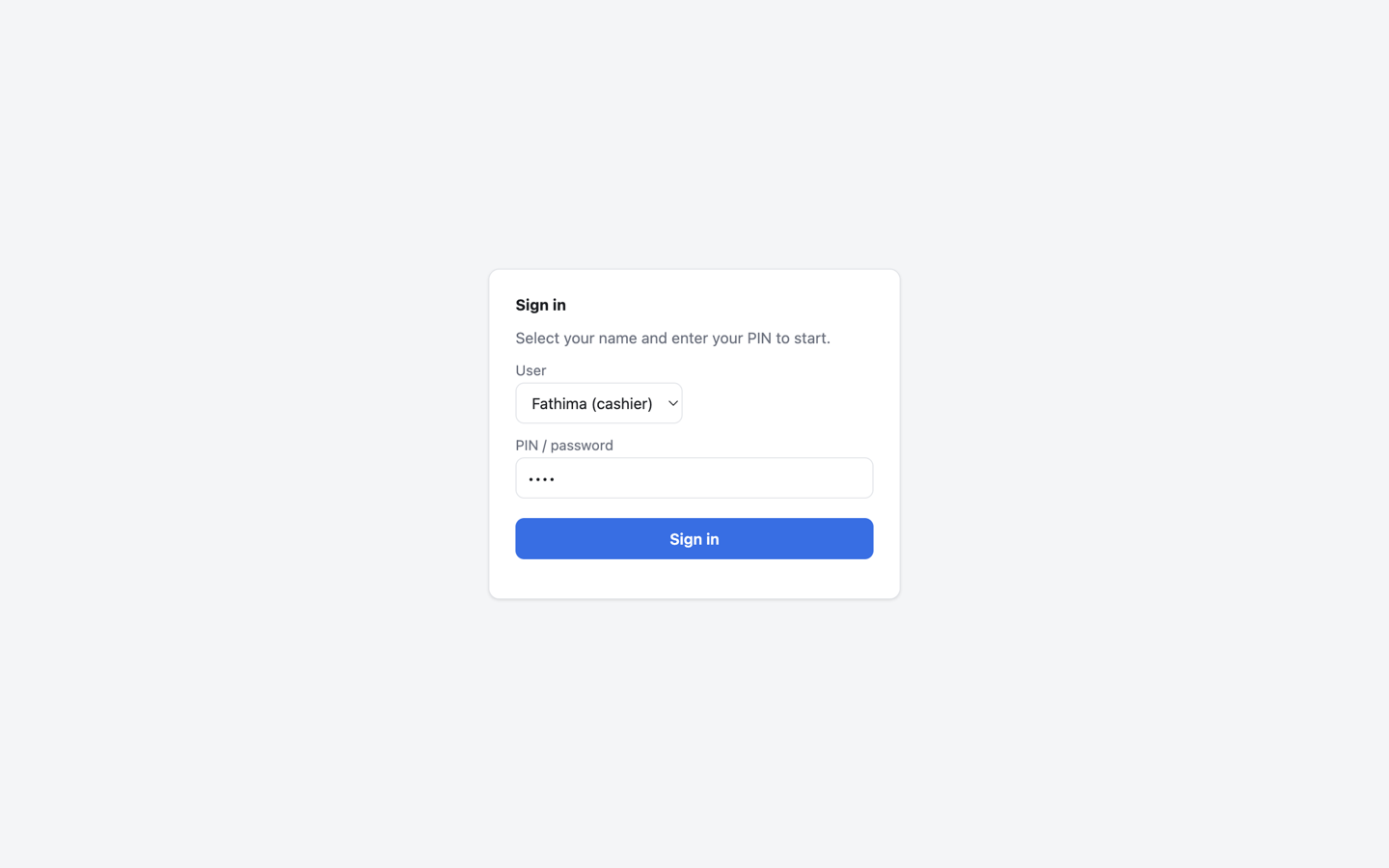
Pairing pulls your products, prices and staff onto the till straight away. From then on, each cashier picks their name and types their PIN, even when the internet is down.

  • Every sale is saved on the till first
  • Syncs in the background every 15 seconds
  • Owner and cashier roles; sensitive actions re-check the owner’s PIN
The till’s Sign in screen: a User list showing Fathima (cashier), a PIN field and a Sign in button.
Cashiers pick their name and sign in with a PIN, online or not.

Questions

Installing, answered

Do I need the internet to use the till?

Only to pair it and to sync. Billing, GST and receipts work offline, and waiting sales go up by themselves when the connection is back. Owner reports, CSV import and AI need the internet.

Can two counters share one PC?

Yes. Several tills can run on one PC, and each is paired and listed on its own. We set this up for you during onboarding.

How do updates work?

Updates are free while you subscribe. A new version installs the same way as the first one.

I don’t have a scanner or receipt printer yet. Can I start?

Yes. Search items by name instead of scanning. Without a thermal printer, the normal Windows print window opens after each sale, so you can print on another printer or save a PDF.

Is there a Mac or phone version?

The till runs on Mac, and the Mac installer is in early access: request a build above. The Android till and the owner mobile app are coming soon. The web admin works in any modern browser on a laptop or desktop.

Free for 30 days

Install it today. We’ll help you set up.

Start the free trial and we’ll set up your store with you. AI Pro, the daily backup and up to 3 tills are included. No card needed.

Indicative launch pricing applies after the trial. Prices exclude GST.